Submitting a Support Ticket
A support ticket is the best way to get tracked, scoped help from the Connie Care Team. You submit it right from inside Connie, you get a ticket number, and you can follow it through to resolution. This guide shows you when to file a ticket, how to write a good one, and the steps to submit it.
🎥 Video walkthrough
A quick 80-second tour — opening a ticket and tracking it, start to finish.
When to submit a ticket
Submit a ticket when you have something that needs investigation or follow-up, such as:
- Something isn't working the way it should (a bug or unexpected behavior).
- A call, message, or task didn't route or behave correctly.
- You need help with a setup or configuration.
- You have a question that needs a documented, trackable answer.
When not to submit a ticket
Some things are faster through another path:
- Quick "how do I…" questions → check the documentation first, or use live chat if it's available.
- Urgent, system-down emergencies → follow your organization's escalation path in addition to filing a ticket, so it isn't waiting in a queue.
- A change you can make yourself → if there's a self-serve setting, you don't need a ticket.
Not sure? File the ticket. The Care Team would rather receive an extra ticket than have you stuck.
How to write a good ticket
A clear ticket gets resolved faster. Include:
- A specific subject. "PCA line not ringing to agents" beats "phone problem."
- What happened. Describe what you saw, in plain language.
- What you expected to happen instead.
- Steps to reproduce — what you did, in order, right before it happened.
- When it happened (date/time) and how often (once, every time, intermittently).
- Who/what was affected — a specific phone number, caller, agent, or program if relevant.
- Screenshots, if you have them — they're worth a thousand words.
💡 Tip: one issue per ticket. If you have two unrelated problems, file two tickets so each can be tracked and resolved on its own.
How to submit a ticket — step by step
1. Open the Support portal
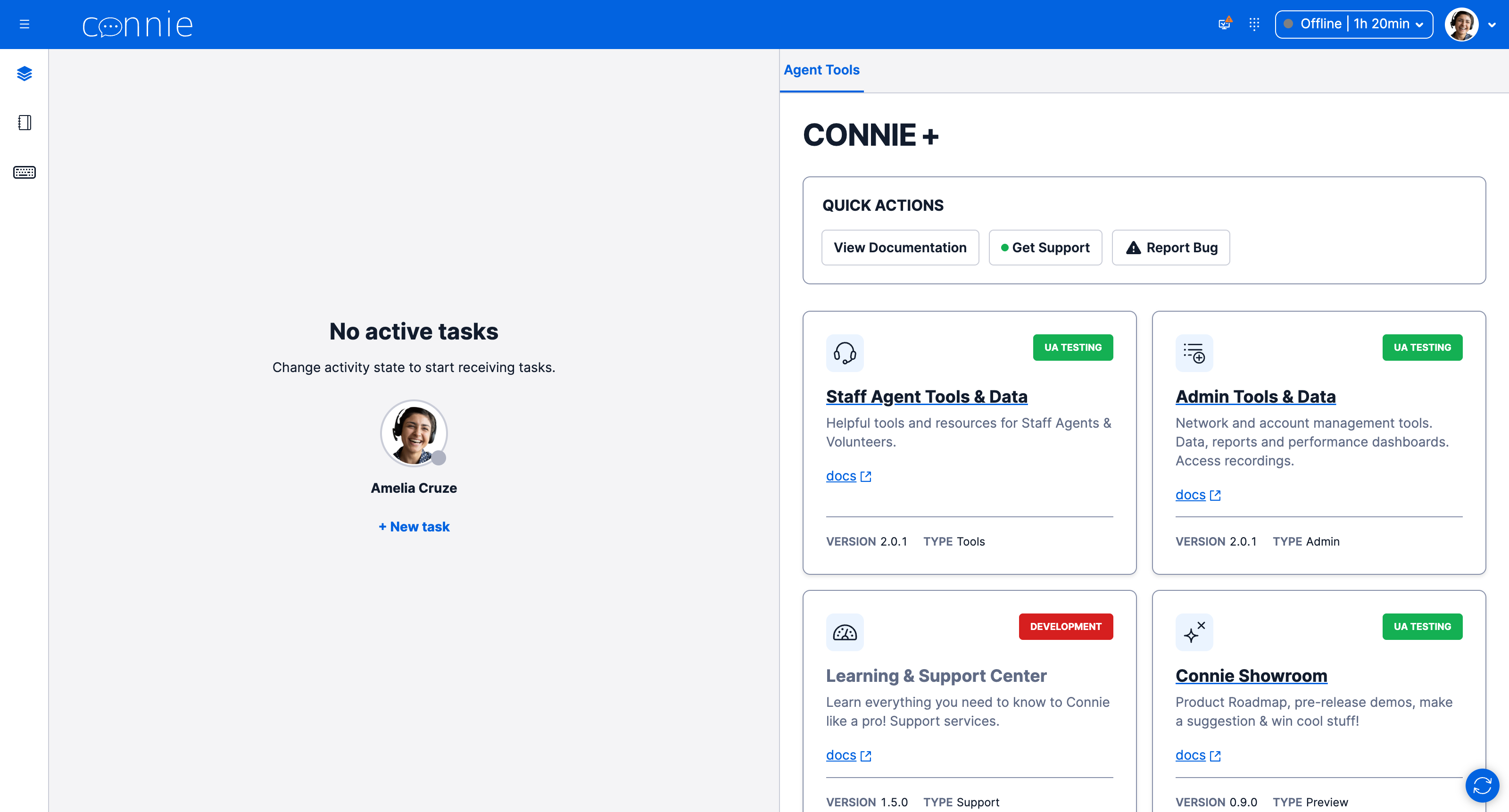
When you have no active task, the right-hand panel shows CONNIE+. Click Get Support.
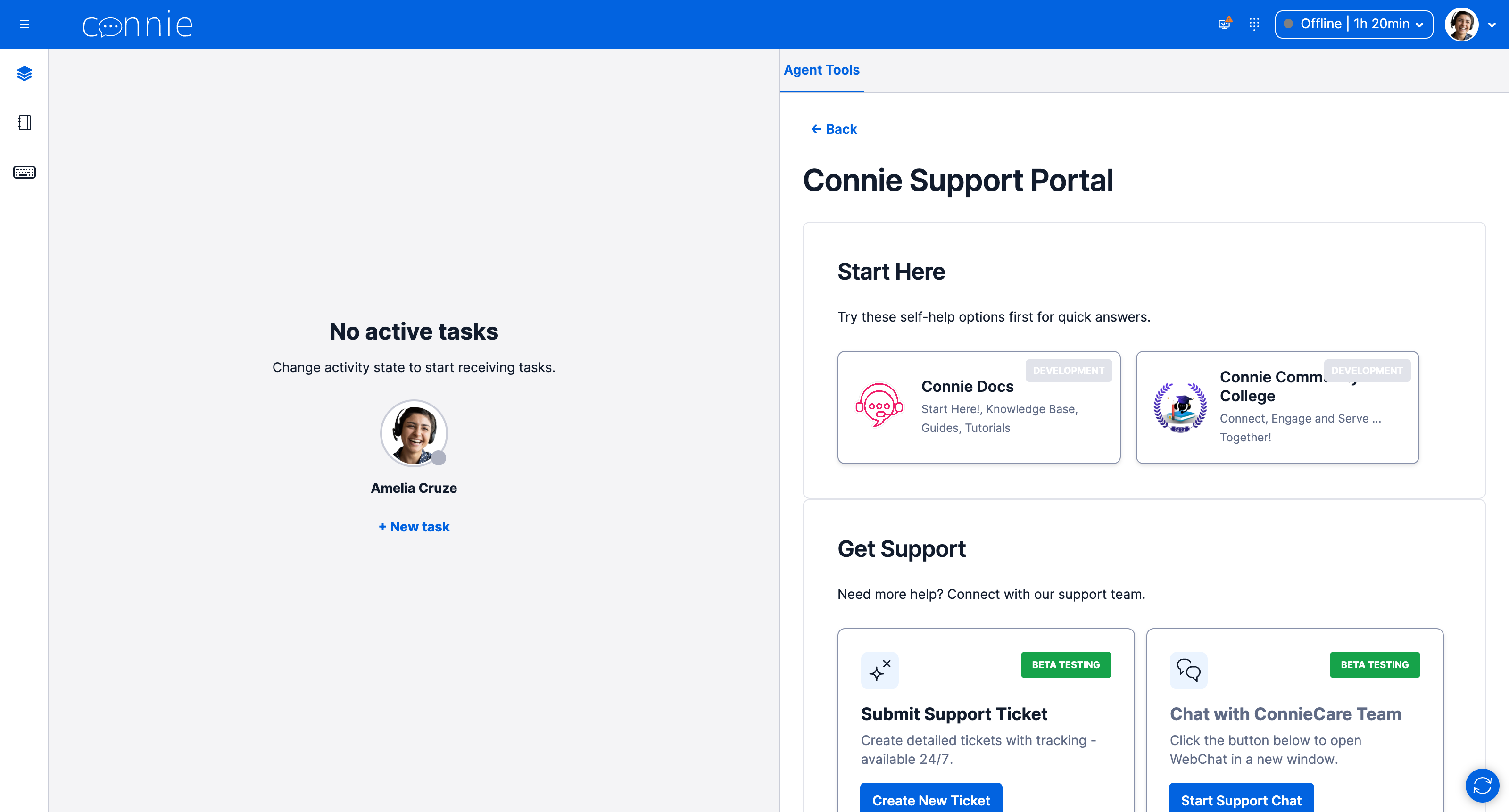
That opens the Connie Support Portal — self-help options up top ("Start Here"), and under Get Support a Submit Support Ticket card.
2. Click Create New Ticket
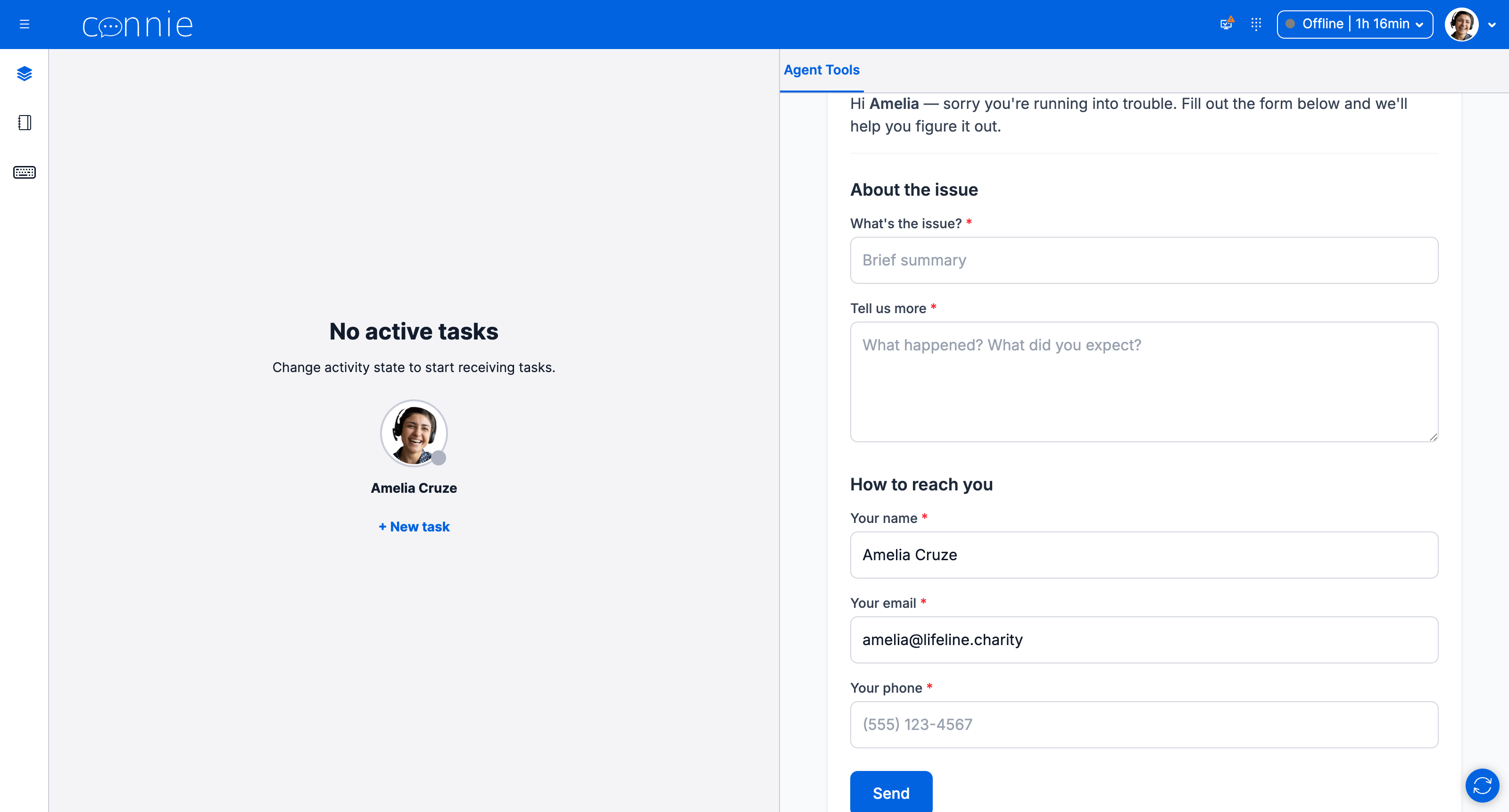
In the Submit Support Ticket card, click Create New Ticket. The form already knows which account you're filing for — you'll see a "Filing for: <Your Account>" badge — and it may pre-fill your name and email.
3. Fill out the form
Complete each field:
- What's the issue? — a short, specific title.
- Tell us more — what happened, what you expected, and steps (see "How to write a good ticket" above).
- Your name and email — so the Care Team can reach you. Use an inbox you check.
- Phone — in case they need to call.
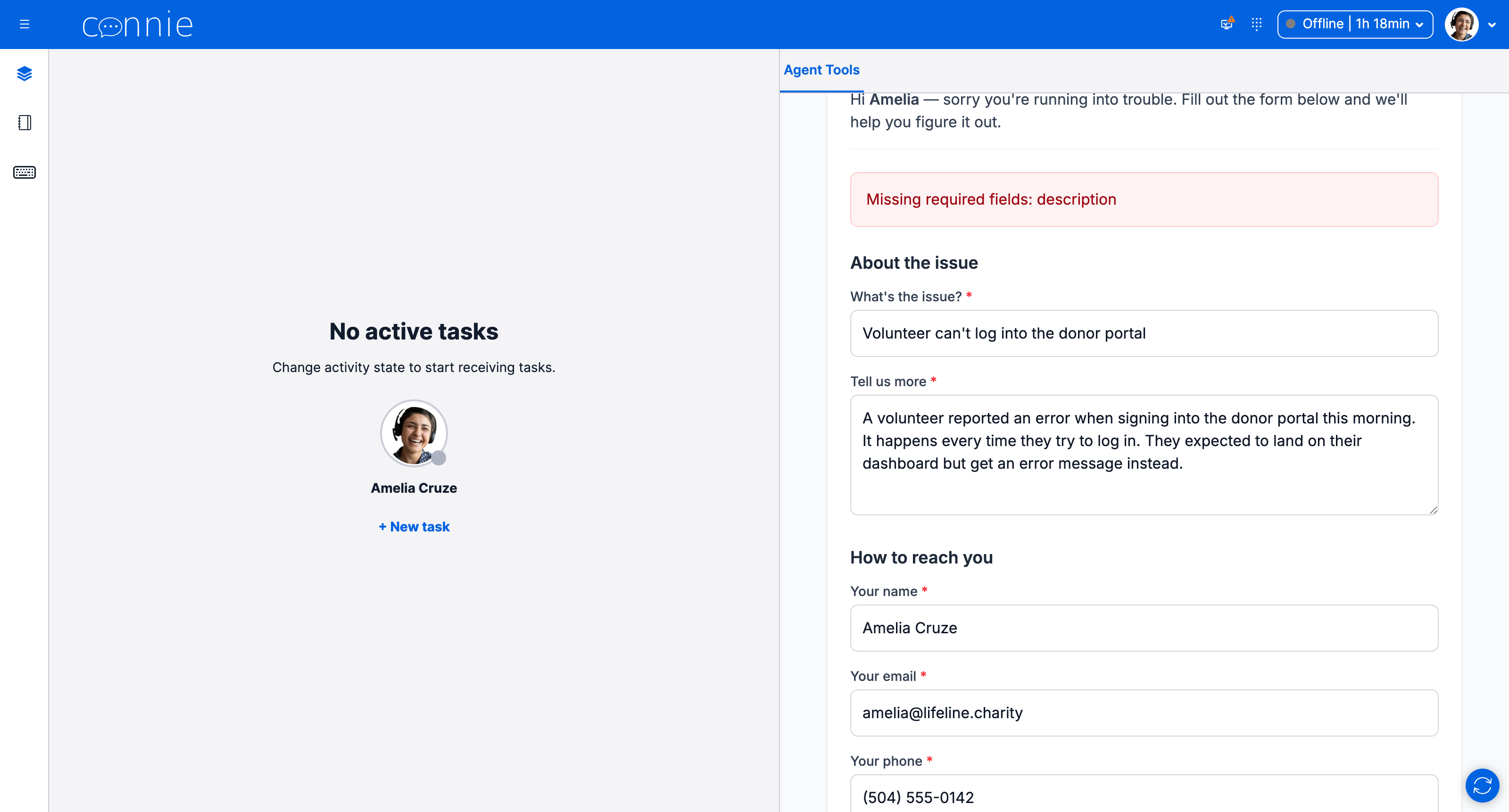
4. Send it
Click Send. You'll see an on-screen confirmation with your ticket number, and you'll get an email confirmation shortly.
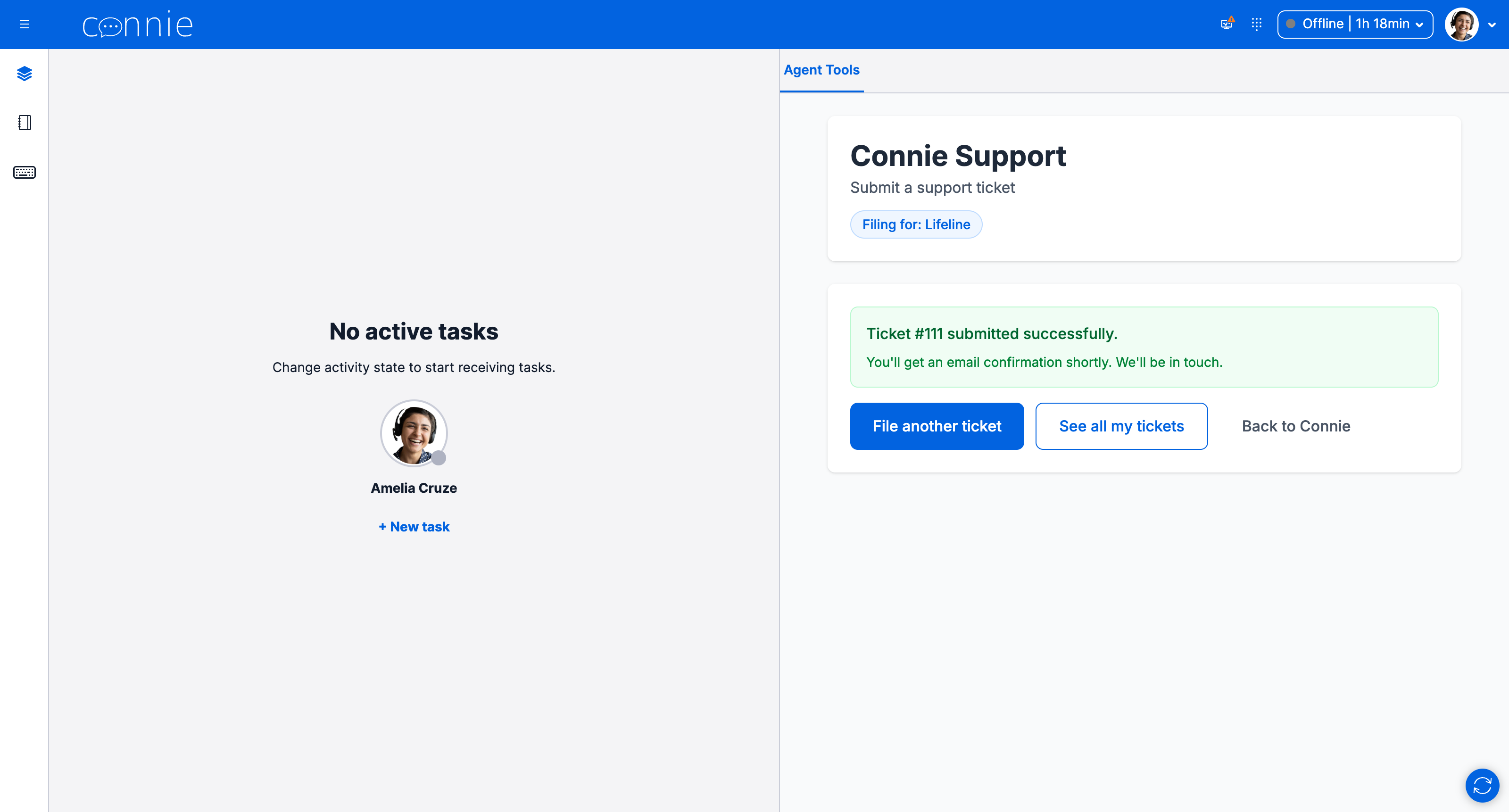
5. From the confirmation screen you can:
- File another ticket — start a new one.
- See all my tickets — view all of your account's tickets.
- Back to Connie — return to the support home.
What happens next
You'll get an email confirmation, the Care Team will pick up your ticket, and they'll reply by email as they work it. To follow your ticket, see Checking & Managing Your Tickets.