Checking & Managing Your Tickets
After you submit a ticket, here's what to expect and how to follow it through — checking status, and how a ticket gets closed or reopened.
The video walkthrough covers both submitting and tracking a ticket in about 80 seconds.
What to expect after submitting
- Confirmation — you see a ticket number on screen and get an email confirmation.
- A Care Team agent picks it up and reviews it.
- Replies come by email. When the Care Team responds, you'll get an email. You can reply to that email to continue the conversation.
- Resolution — once your issue is handled, the ticket is closed.
Replies you receive are the Care Team's customer-facing messages. Any private notes the team writes internally are never shown to you — you only see what's meant for you.
Response times
Typical turnaround for a ticket is about 1 business day, and it can flux based on ticket volume.
If you need faster, guaranteed response times, contact your account manager and ask about advanced support packages. These add priority handling with committed response targets — for example:
| Priority | Target response (advanced support packages only) |
|---|---|
| Critical — system down or security concern | 2 hours |
| High — a major feature is broken | 4 business hours |
| Medium — functionality impaired | 1 business day |
| Low — questions or minor issues | 2–3 business days |
The faster targets above are available with paid advanced support packages. Standard tickets default to the ~1 business day typical turnaround. Ask your account manager about upgrading.
How to check a ticket's status
You have two ways, both from the Connie Support Portal (open the no-active-task panel → Get Support):
Look up one ticket by number — Quick Ticket Lookup
- Open the Connie Support Portal.
- In the Submit Support Ticket card, find Quick Ticket Lookup.
- Enter your ticket number and click Track.
- You'll see the ticket's status, subject, and details (it auto-refreshes every 30 seconds).
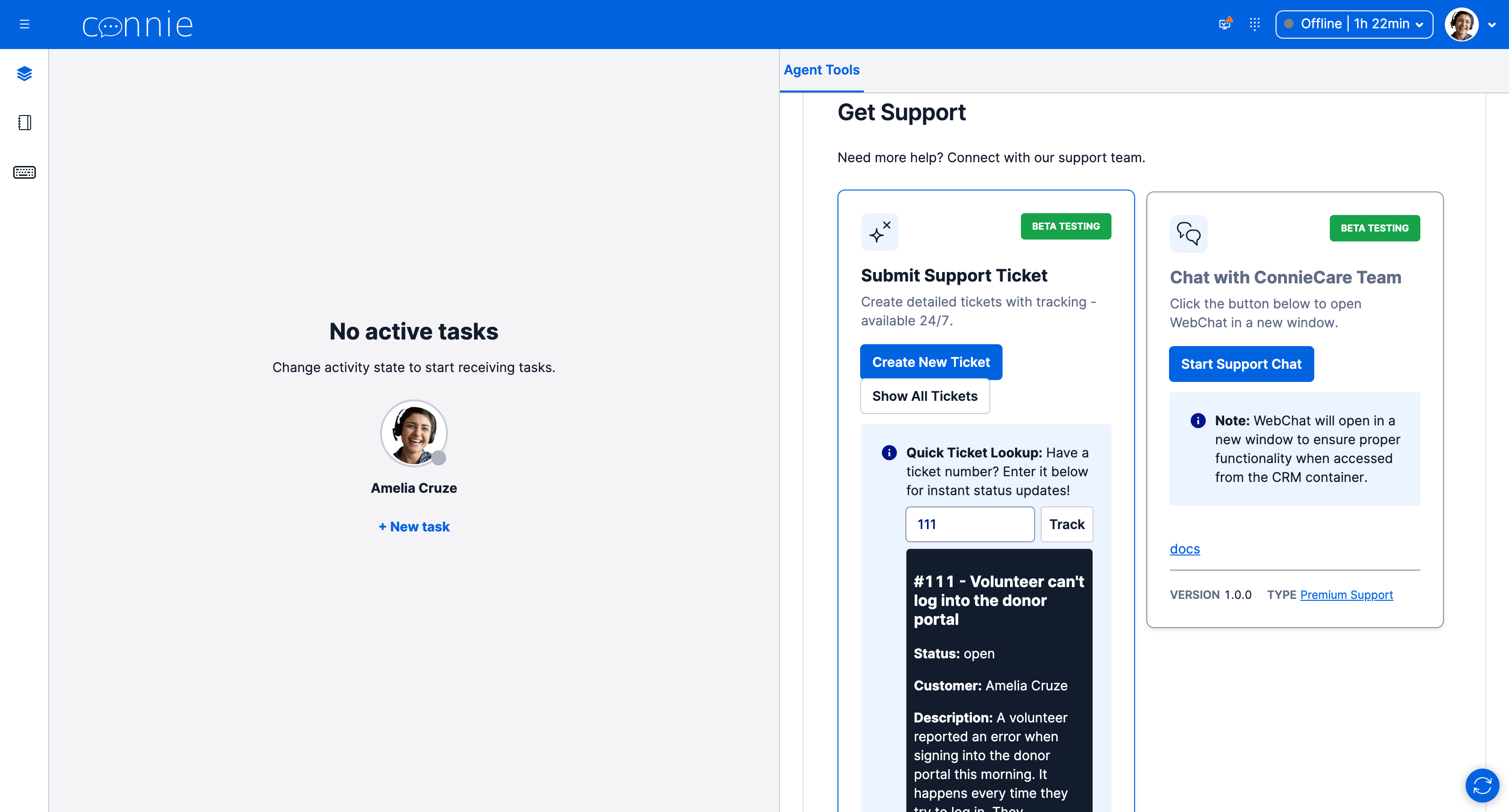
Only your account's tickets are visible. A number that doesn't belong to your account will return "not found" — that's expected and keeps every organization's tickets private.
See everything — Show All Tickets
- Open the Connie Support Portal (or use "See all my tickets" on the confirmation screen after submitting).
- Click Show All Tickets — you'll see a list of your account's tickets.
- Use the status filter tabs (All · Open · In Progress · Waiting · Resolved · Closed) — switch to All to include closed and resolved tickets.
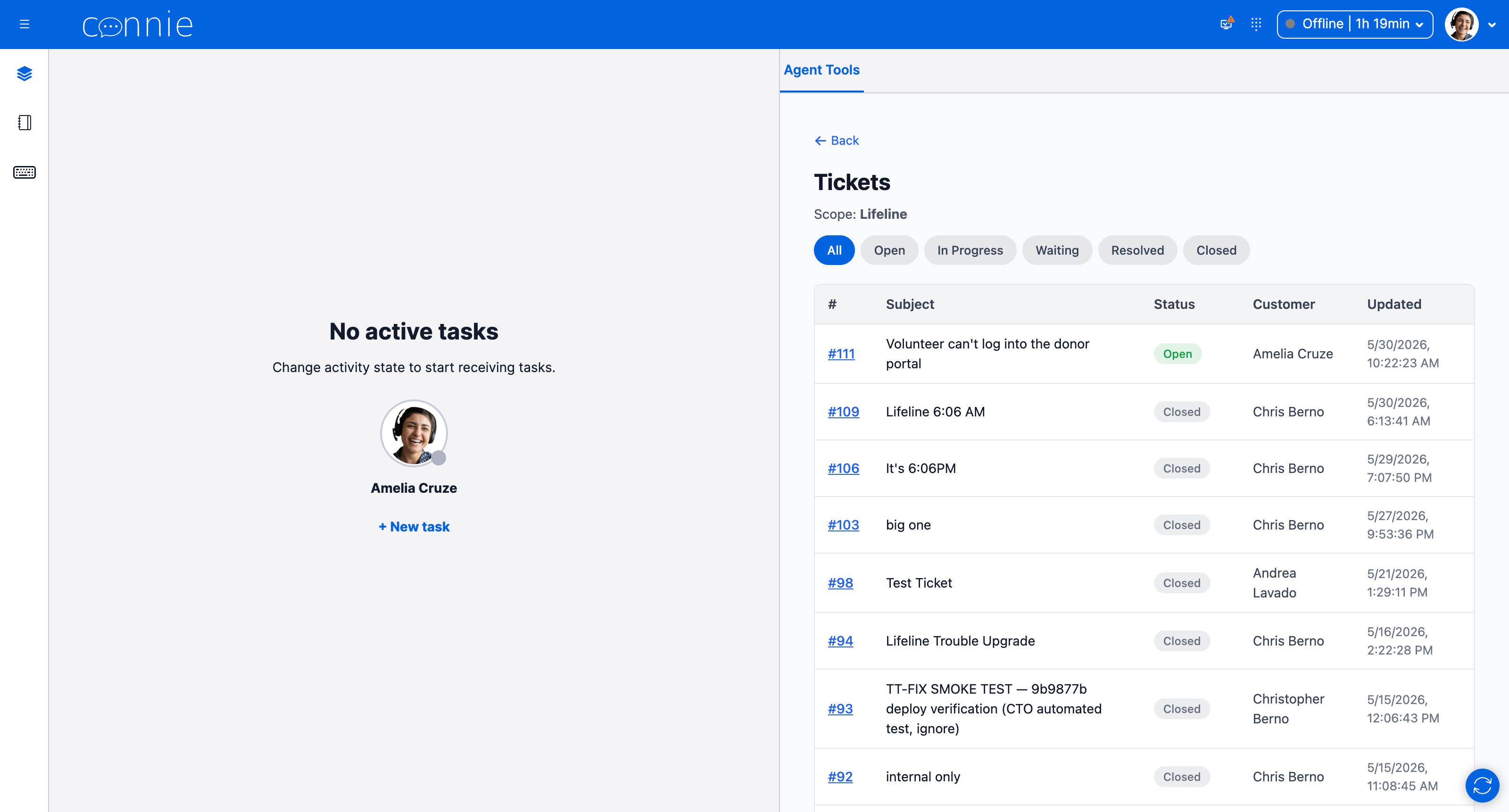
Ticket statuses you'll see: Open · In Progress · Waiting · Resolved · Closed.
How a ticket gets closed
When the Care Team has resolved your issue, they close the ticket. You'll typically receive a final reply by email. No action is needed on your part.
How to reopen a ticket
If an issue you reported comes back after the ticket was closed, you don't need to file a new one:
- Reply to the ticket's email. Replying re-opens the ticket automatically and sends it back to the Care Team.
💡 Reopen only when it's the same issue. For a new, unrelated problem, file a new ticket so each issue is tracked on its own.
Trouble checking or submitting?
If something isn't working — Track says "not found" for a ticket you know exists, your list is empty, or you didn't get a confirmation email — your administrator can use the Ticketing System Troubleshooting guide, which covers what to check locally and when to contact Connie.