Support Ticket System — Administrator Guide
The Connie Support Ticket System is one of Connie's built-in Support Options. It lets your staff submit support requests directly from inside Connie and get scoped, secure help — every ticket stays private to your account, and your team can track it from submission to resolution.
This page is for Connie account administrators. For the step-by-step staff guide, see Submitting a Ticket. For fixing problems, see Ticketing System Troubleshooting.
What it is
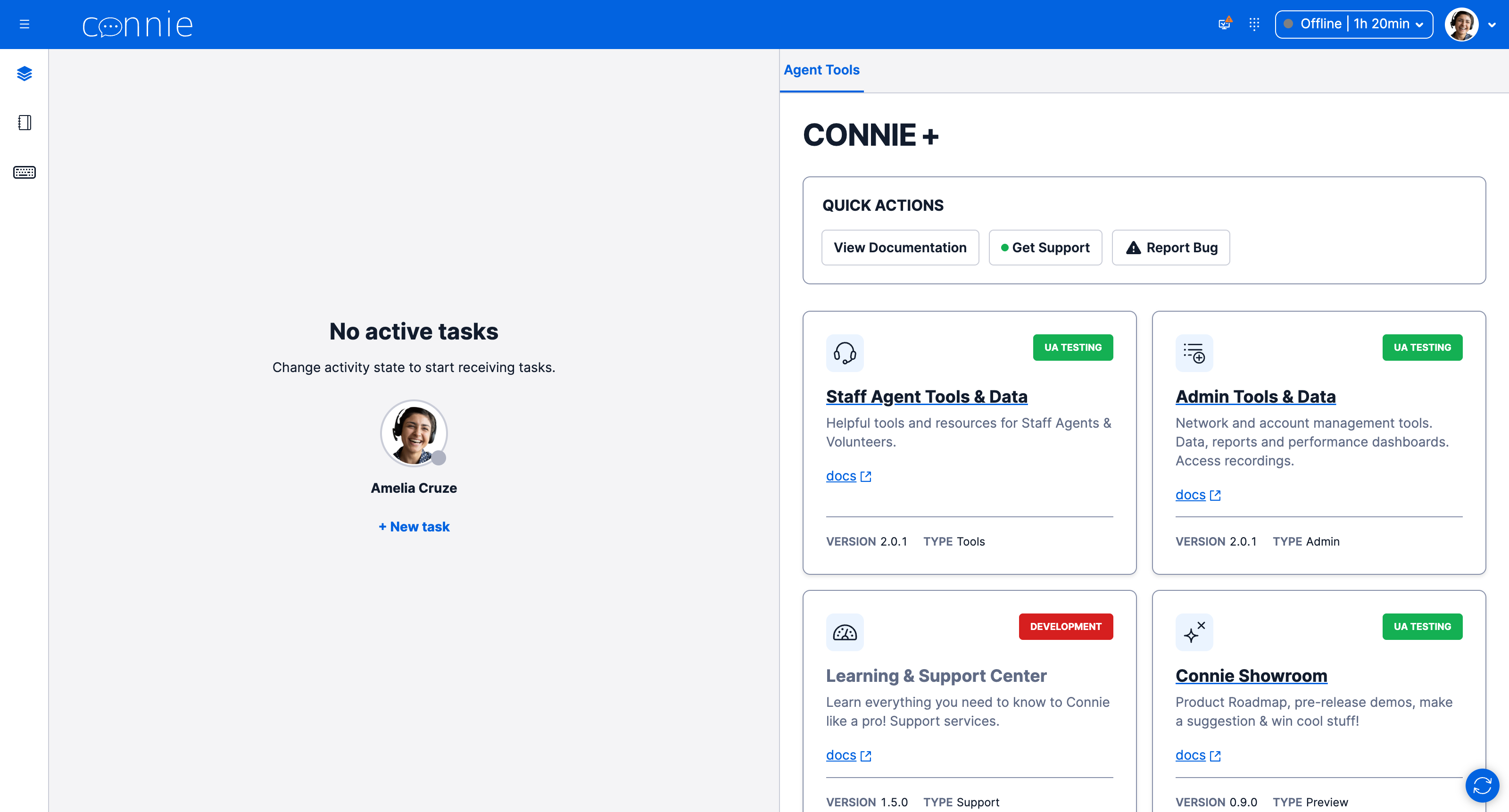
When a staff member has no active task, the right-hand panel shows the CONNIE+ panel; clicking Get Support opens the Connie Support Portal. From there your team can:
- Create a new ticket — submit a support request through a simple form.
- See all tickets — view every ticket for your account (not other organizations').
- Track a ticket — look up a single ticket's status by its number.
Each request becomes a tracked ticket that the Connie Care Team (our support desk) receives, works, and resolves — with email updates along the way.
Why it matters: scoped + secure by design
The Support Ticket System is account-scoped. That means:
- Your staff only ever see your account's tickets — never another organization's.
- "See all tickets" and "Track by number" are both limited to your account. Looking up a ticket number that doesn't belong to your account returns "not found."
- Internal notes that the Care Team writes while working a ticket are never shown to the person who filed it. Only customer-facing replies are shared (by email and in the ticket view).
This isolation is automatic — there's nothing for an administrator to switch on per ticket.
The lifecycle of a ticket
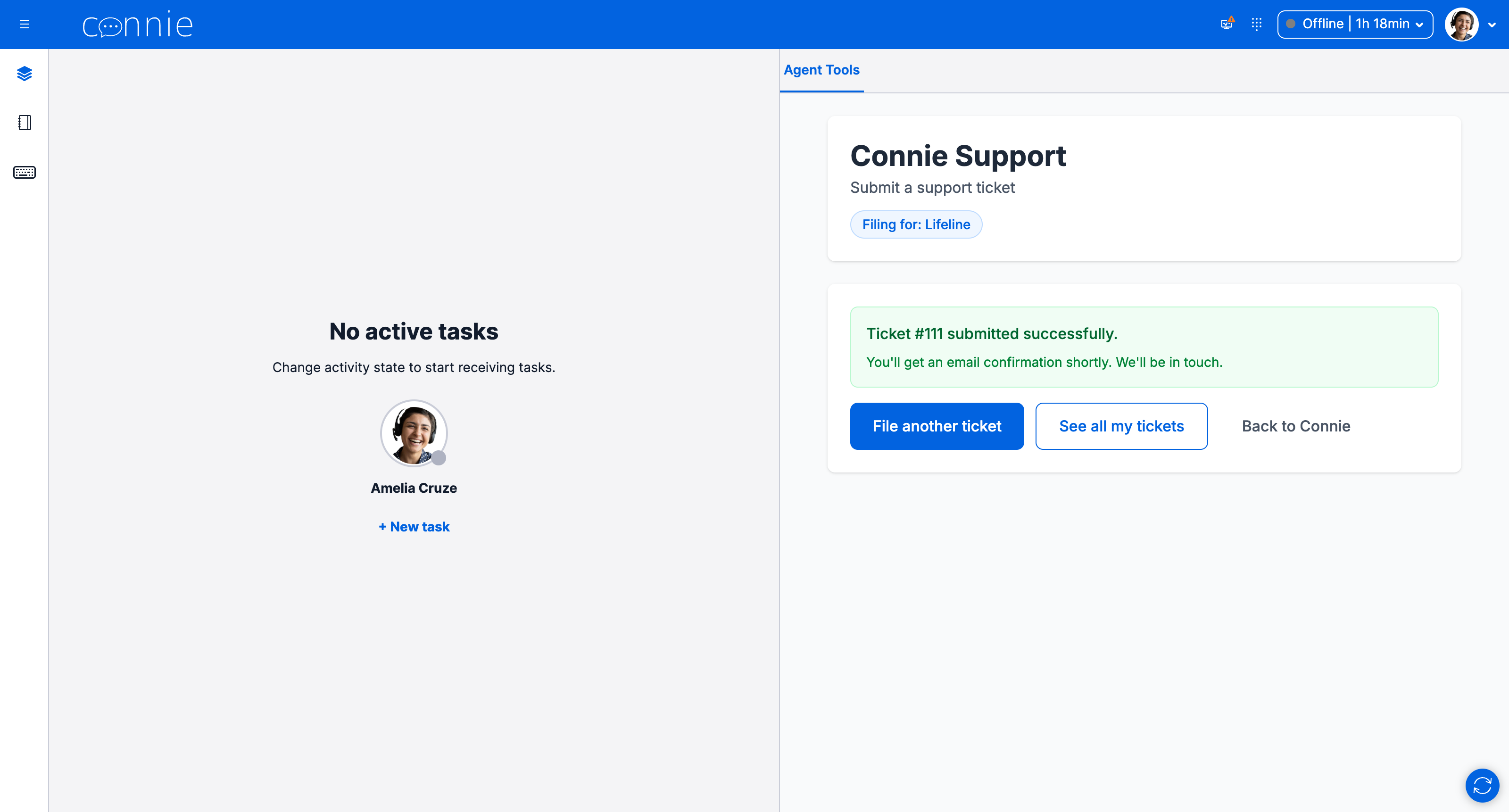
- Submit — a staff member fills out the Create New Ticket form. They get an on-screen confirmation with a ticket number, plus an email confirmation.
- Route — the ticket arrives at the Connie Care Team's queue.
- Work — a Care Team agent picks it up, may ask questions, and replies. Replies reach the filer by email.
- Resolve / Close — when the issue is handled, the ticket is closed.
- Reopen — if the person replies to the ticket email after it's closed, the ticket automatically reopens and returns to the Care Team queue.
Ticket statuses: Open · In Progress · Waiting · Resolved · Closed.
What an administrator should know
- No per-ticket setup. Once your account is onboarded with Connie, the Support panel and scoping work automatically for every staff member.
- It appears in the no-active-task view. Staff reach it from the right-hand panel when they have no active task. If your team doesn't see the Support panel, that points to an account-onboarding gap — open a ticket with Connie (see Troubleshooting).
- Email matters. Ticket confirmations and Care Team replies are delivered by email. Make sure staff use a reliable inbox they check. (Some self-hosted email domains can intermittently delay these messages — if confirmations are unreliable, flag it to Connie.)
- Reopen by reply. Staff don't need to file a new ticket if something they reported recurs after closing — replying to the original ticket email reopens it.
- Privacy is built in. You don't need to configure anything to keep internal notes hidden from filers or to keep accounts isolated — it's enforced by the platform.
How your staff use it
- Submit a ticket: Submitting a Ticket
- Check status, close & reopen: Checking & Managing Your Tickets
Related
- Ticketing System Troubleshooting — common issues, what you can fix locally vs. when to open a ticket with Connie.
- Get Support overview — all of Connie's support options.