Transferring Tasks
Every task now has a Send button at the top. Send → Transfer moves the task to a coworker or a department in ThreadConnect, and ThreadConnect keeps track of it. For the full picture, including Hand off and Refer out, see ThreadConnect Task Sender.
A task that arrives while you're closed will still be waiting for four full days — long enough to survive a weekend, and a holiday weekend. Close Friday at 5:30 PM, an email lands at 5:31 PM, and it's still there when someone starts Monday morning.
Live phone calls and web chats are the exception; their window is much shorter, because someone is on the line right now.
Need a different window for a program or channel? Custom settings are available — contact your ThreadConnect account representative or the ThreadConnect Care Team. See How Long a Task Stays in Your Queue.
Transfer sends a task to a coworker or a department in ThreadConnect. It stays in ThreadConnect, so nothing gets lost. You can transfer any kind of task: a phone call, web chat, text message, voicemail, fax, web form or email.
🔧 What You Need to Know
- Press Send, then Transfer. It works on every kind of task.
- You can transfer to a coworker or to a department (the next free person there picks it up).
- On a phone call you can talk to the coworker first (warm) or pass it straight over (cold).
- The conversation history goes with the task.
- If the department is closed, ThreadConnect asks you first. See the closed-department message.
📞 Transfer a Phone Call, Web Chat or Text
Someone is waiting with you, so Transfer is the only choice on the Send menu.
- Press Send, then Transfer.
- The transfer list opens. Pick a coworker (Agent tab) or a department (Queues tab).
- On a phone call, choose how to pass it on:
- Cold transfer: the call goes straight over and your task finishes.
- Warm transfer: you talk to your coworker first, explain the situation, then leave the call.
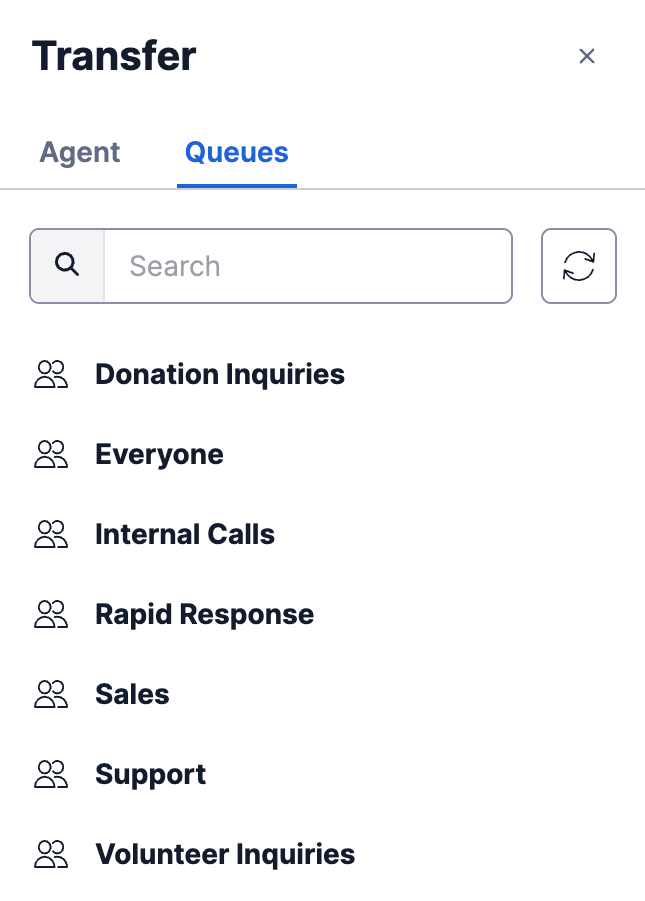
Need to connect a caller to someone outside ThreadConnect? Use the External tab or the dial pad.
📠 Transfer a Voicemail, Fax, Web Form or Email
- Press Send, then Transfer.
- Choose a department or a coworker from the list.
- Fax, web form and email: choose a disposition (and add a note if you like). This records how you handled it, because your copy closes as soon as you transfer it.
- Press Transfer.
- Voicemail: after the transfer, pick your disposition in wrap-up and press Complete.
Want to send it to someone who doesn't use ThreadConnect? That's Hand off or Refer out. See Handing Off & Referring Out.
💡 Best Practices
When to Transfer
- The client needs help you can't give
- Your supervisor needs to step in
- The client would be better served in another language
- You're going off shift and the task isn't finished
Transfer Tips
- Tell the client what's happening before you transfer
- Use a warm transfer on calls when the situation is complex, so nobody has to repeat their story
- Add a note so your coworker can pick up where you left off
- Transferring to a department is usually best — the next free person gets it
- If a transfer fails, don't keep retrying. Tell your supervisor.
What to Say to Clients
For Calls: "I'm going to connect you with [Name/my supervisor] who can better assist you with this. Please hold for just a moment."
For Chats: "I'm bringing in my colleague [Name] who specializes in this area. They'll join our conversation in just a moment."
🔍 What Happens Next
- To a coworker: they get a notification and can accept it.
- To a department: the next free person there picks it up. If everyone is busy, it waits for the next free person.
- History: the conversation history goes with the task.
- Reports: every transfer is recorded.
⚠️ Common Issues
"I don't see the Send button"
- The Task Sender is switched on for each organization by the ThreadConnect team. Ask your supervisor.
"ThreadConnect says the department is closed"
- Press Cancel to keep the task, or Transfer anyway if you still want to send it.
"My coworker didn't accept the transfer"
- They might be busy or offline
- Try transferring to a department instead
- Ask your supervisor for help
"The transfer failed with an error message"
- This is usually a system problem, not something you did wrong
- Note the time and take a screenshot if you can
- Tell your supervisor right away, and don't keep retrying
"The client got disconnected during the transfer"
- For calls: they may get a callback automatically
- For chats: the conversation continues when they reconnect
- Let your supervisor know
🚀 Quick Reference
| Action | Steps |
|---|---|
| Transfer a call, chat or text | Send → Transfer → Agent or Queues tab → pick → transfer |
| Warm transfer a call | Send → Transfer → pick → talk to them first → leave the call |
| Transfer a voicemail, fax, form or email | Send → Transfer → pick department or coworker → disposition → Transfer |
| Send it outside ThreadConnect | See Handing Off & Referring Out |
Need help with transfers? Ask your supervisor or contact ThreadConnect Support.