Finding Past Voicemails, Faxes and Forms
Sometimes you need something that came in days ago. A voicemail you want to hear again. A fax from a doctor's office. A form a client signed last week.
The Playback Machine keeps these in one place. You can play a voicemail or open a fax or form, any time, without needing the original task.
- Everything in one place. Voicemails, faxes and forms in one list, newest first.
- Forms are new. Signed web forms now sit right beside your voicemails and faxes.
- Private by design. Only staff signed in to ThreadConnect can see your messages.
- Nothing to install. It's already in your ThreadConnect panel.
Where to find it
The Playback Machine lives inside ThreadConnect. You must be signed in to ThreadConnect to use it.
- Make sure you are not working on a task. Finish or close the task you have open.
- Look at the side panel. With no task open, it shows the ThreadConnect home page.
- Click Admin Tools & Data.
- Click Data & Reporting.
- Find the card called Playback Machine.
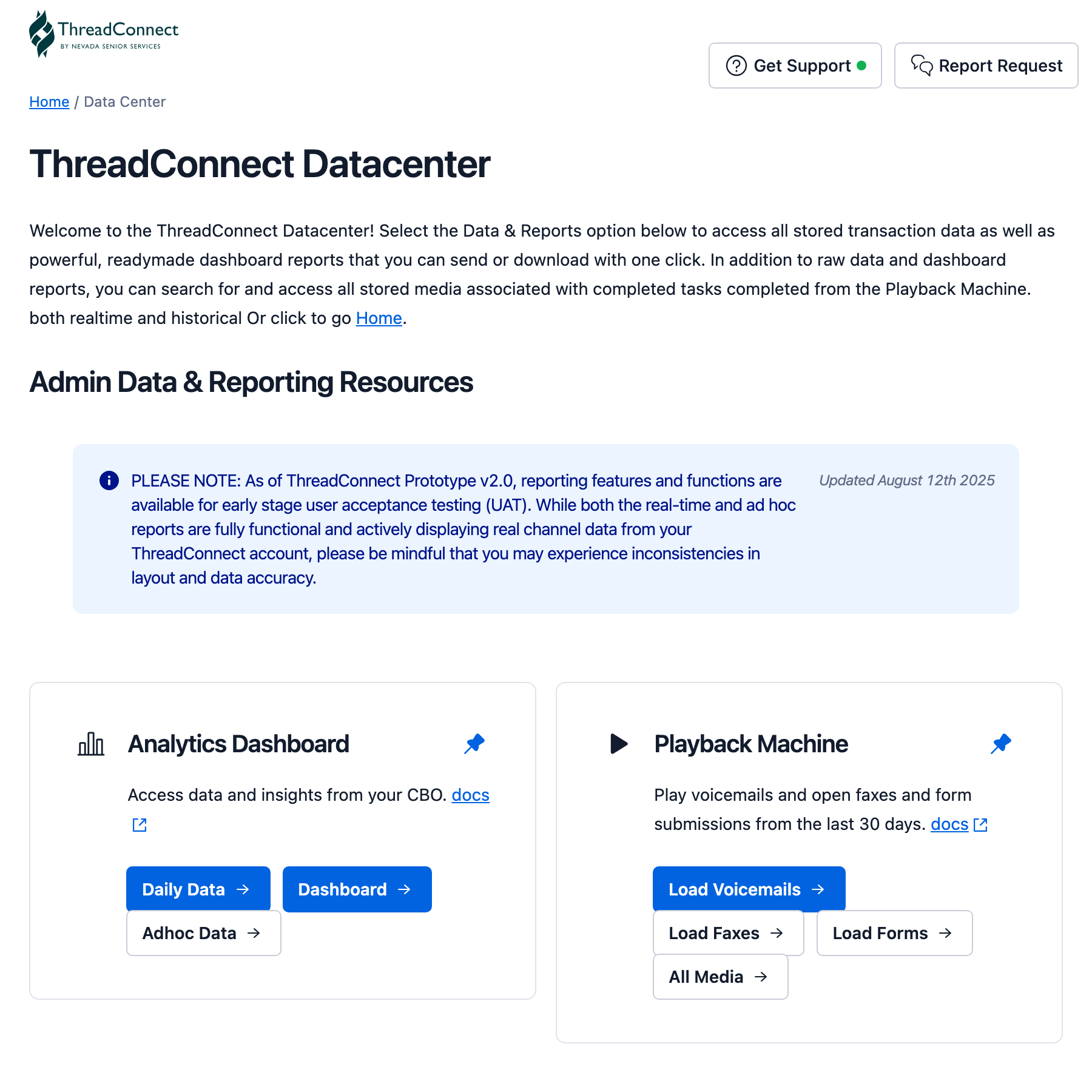
The card has four buttons:
| Button | What it opens |
|---|---|
| Load Voicemails | Voicemails left for your team |
| Load Faxes | Faxes sent and received |
| Load Forms | Signed web forms |
| All Media | Everything together in one list, with filters |
What each list shows
Every list shows the last 30 days, newest first. There is no limit on how many items it shows: if it came in during the last 30 days, it is in the list.
Voicemails
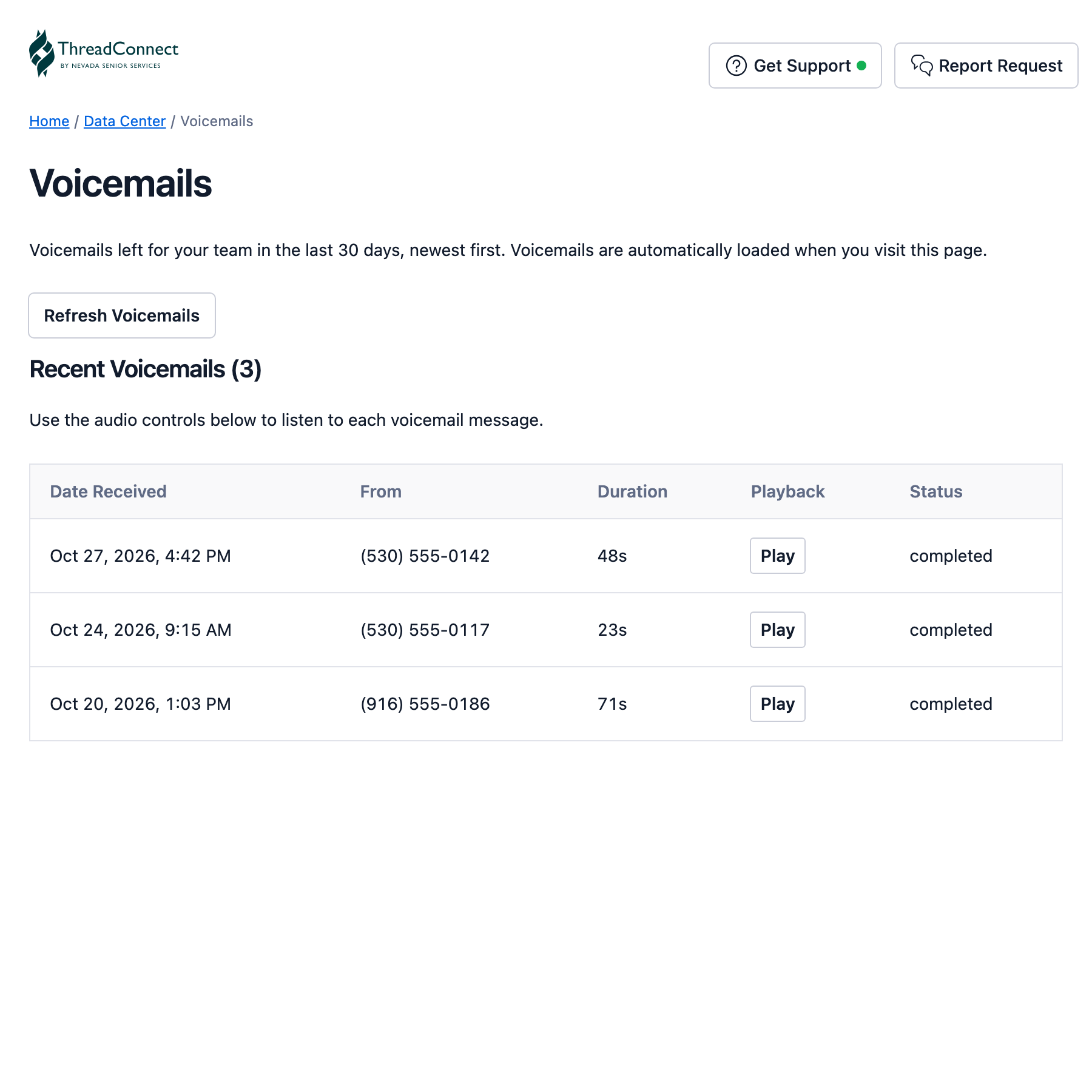
Messages callers left for your team.
- You see the date, who called, and how long the message is.
- The list shows voicemails only. Recorded phone calls are not listed here.
Faxes
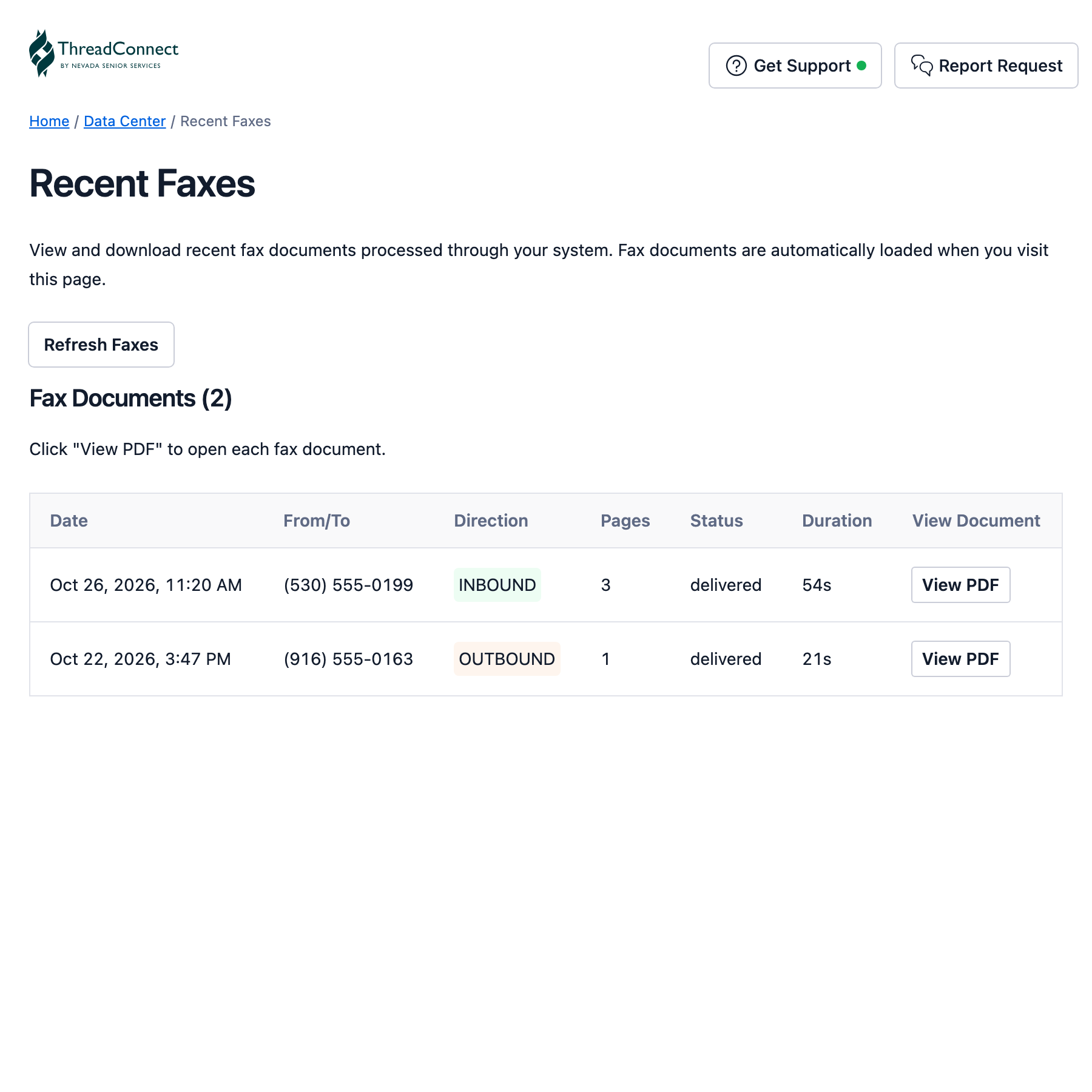
Faxes your team sent or received.
- You see the date, the other fax number, whether it came in or went out, and the number of pages.
Forms
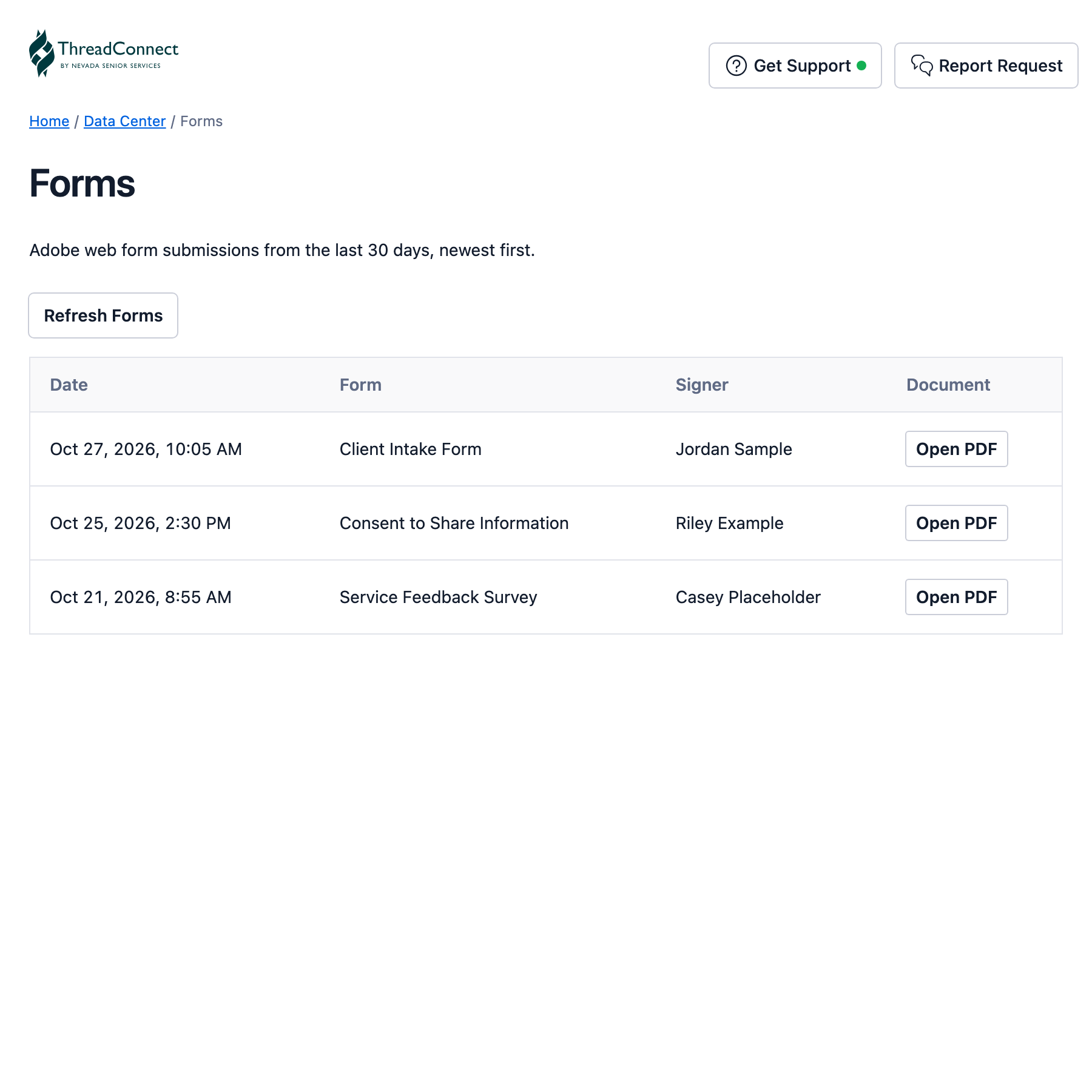
Web forms that clients filled out and signed (Adobe forms).
- You see the date, the name of the form, and who signed it.
- If ThreadConnect can't tell who signed, you'll see a dash (—) instead of a name.
All Media
One list with voicemails, faxes and forms mixed together, newest first.
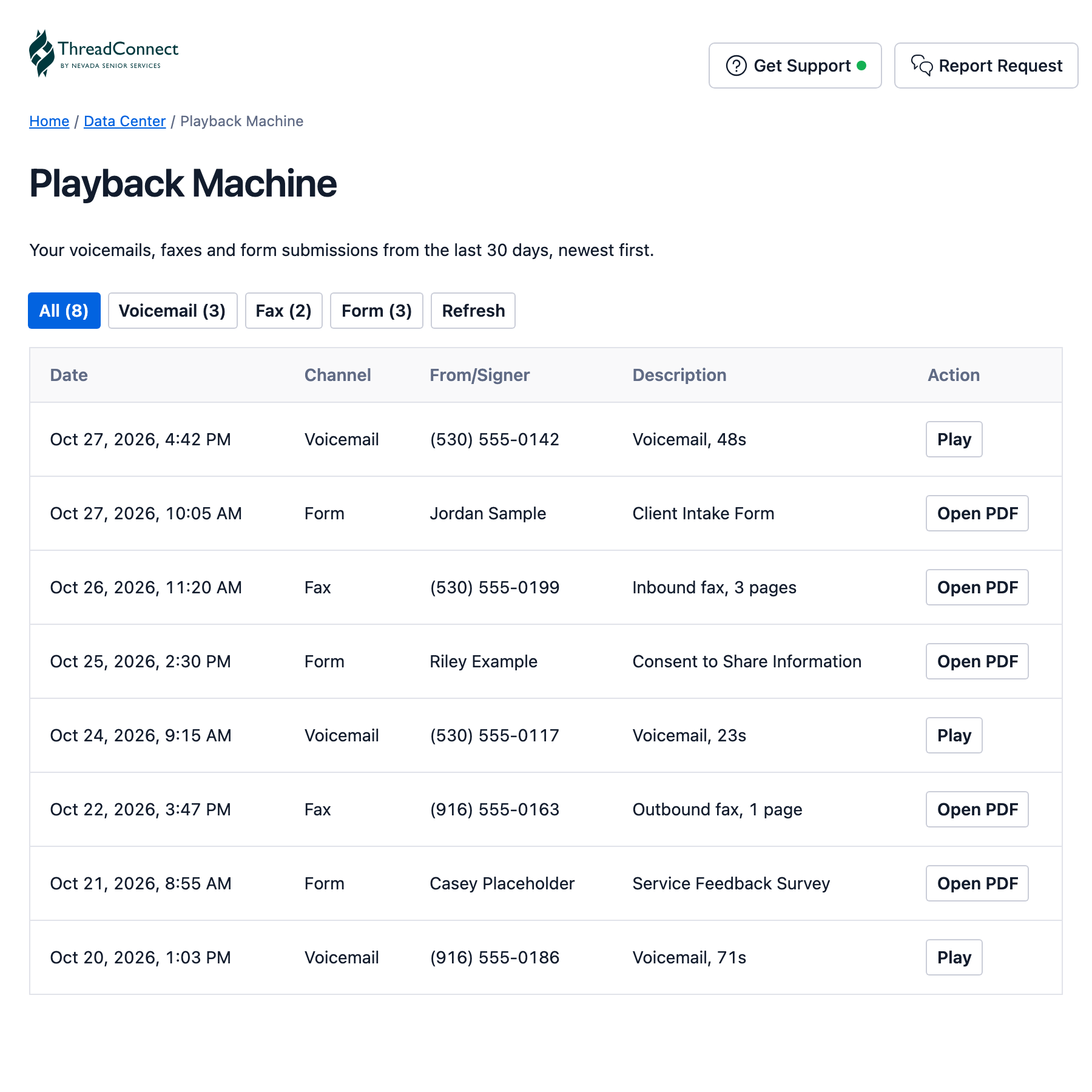
Use the buttons at the top to narrow it down:
- All shows everything.
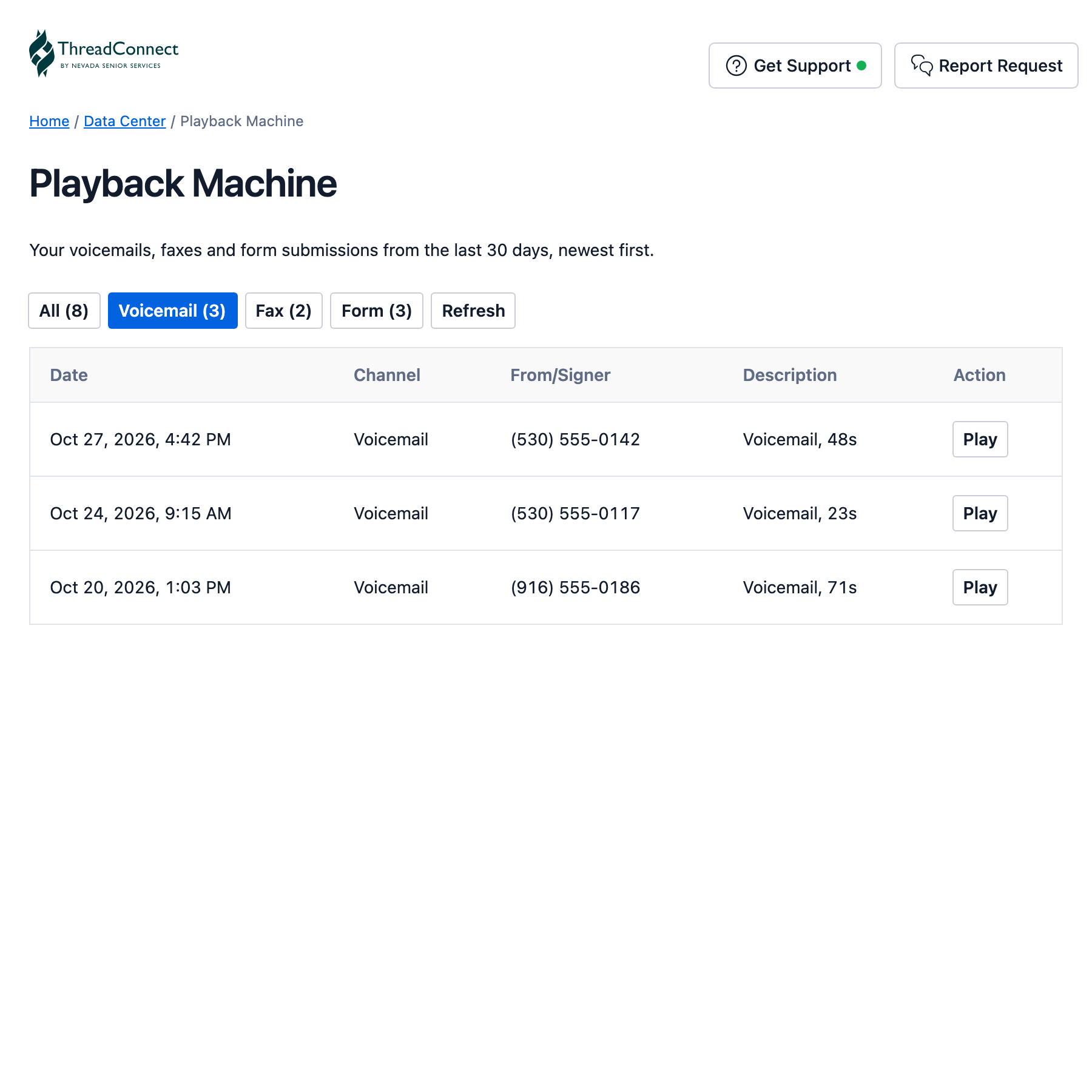
- Voicemail, Fax or Form shows just that kind. Click it again to show everything.
- Refresh checks for anything new.
Each button shows a count, so you can see at a glance how many of each there are.
How to use it
Play a voicemail
- Find the voicemail in the list.
- Click Play.
- A small audio player appears. Use it to pause, replay or skip ahead.
Use headphones if you're in a shared space. These messages are private.
Open a fax or form
- Find the fax or form in the list.
- Click Open PDF (on the Faxes page, the button says View PDF).
- The document opens on the page, below the buttons.
- Click Close when you're done.
For privacy, each file opens for a short time only. If a voicemail or document stops loading after a few minutes, click Play or Open PDF again.
If you see "Sign in from ThreadConnect"
This means the page was opened outside ThreadConnect, for example in a separate browser tab, from a bookmark, or from a link someone sent you.
What to do: go back to ThreadConnect and open the Playback Machine from the side panel, as shown above.
For your clients' privacy, voicemails, faxes and forms only show to a person who is signed in to ThreadConnect for your organization. That is on purpose.
If you see "Your sign-in expired"
Reload the ThreadConnect panel, then open the Playback Machine again. If that does not help, sign out of ThreadConnect and sign back in.
There is no public link
The Playback Machine does not have a link you can share or bookmark. Opened anywhere other than your ThreadConnect panel, it shows nothing.
- Old bookmarks no longer work. If you saved a bookmark to an older voicemail or fax page, including any link with twil.io in it, delete it.
- Don't send links to colleagues. Tell them to open the Playback Machine from their own ThreadConnect panel.
- Voicemail emails: the link inside a voicemail notification email asks for a login you don't have. Play the attached audio file instead, or find the voicemail in the Playback Machine.
Good to know
- Only your organization. You only ever see your own organization's voicemails, faxes and forms.
- 30 days back. The lists only go back 30 days. If you need something older, talk to your supervisor.
- It's for looking back. Playing or opening a file here does not delete it or close any task.
Need help?
Contact your supervisor or ThreadConnect Support. You can also check Troubleshooting.