Using Canned Responses
Canned Responses are pre-written replies your organization has prepared for the questions you answer most often. Instead of typing the same answer from scratch, you can drop one in with a click — and edit it before sending if the situation needs a tweak.
Your supervisor or admin curates the library. You'll see whatever they've published for your account.
Where you'll see them
Canned Responses appear in one of two places, depending on how your account is set up. You don't choose — your admin picks one.
Option A — CRM Panel (right side of the screen)
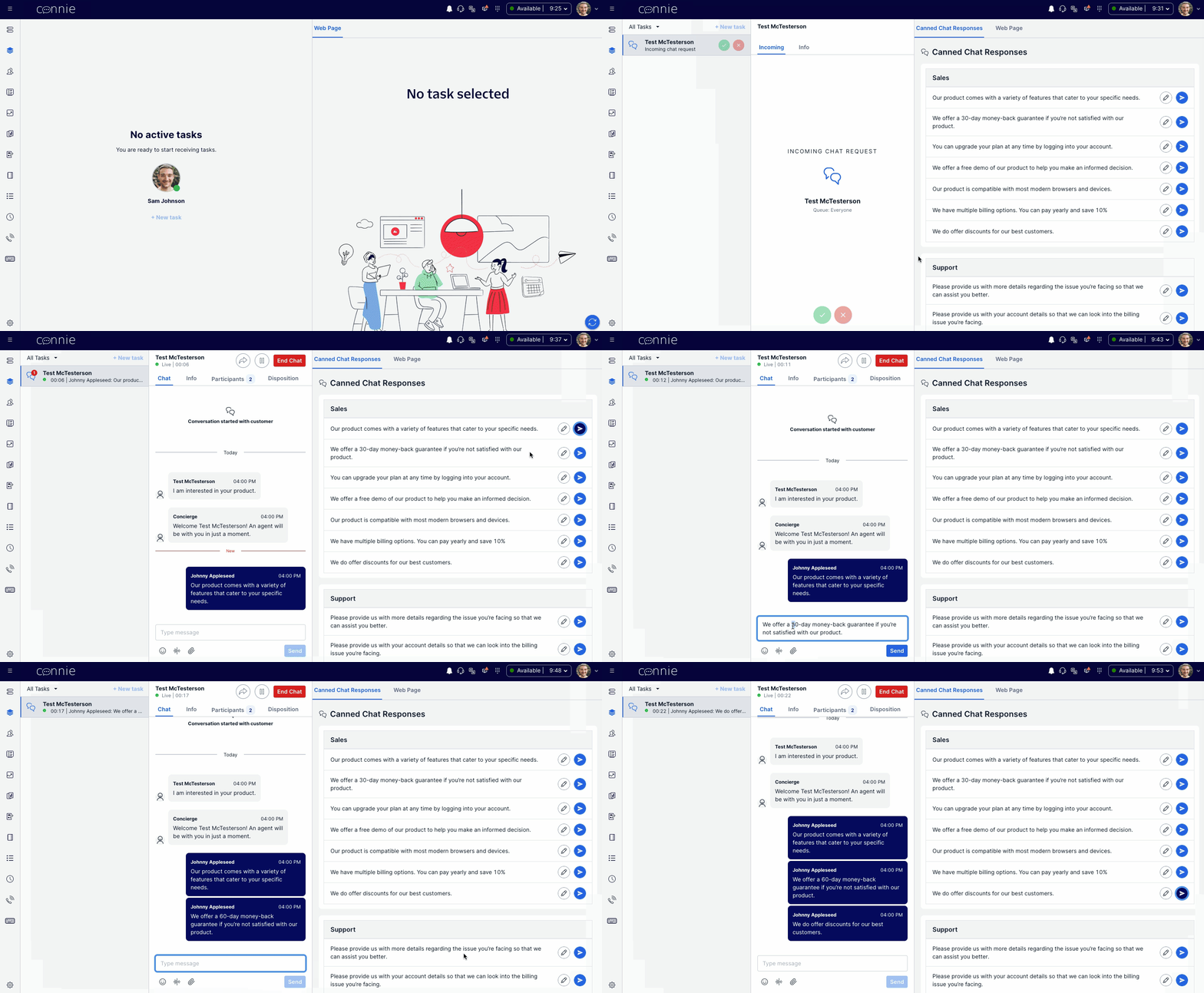
When the canned responses live in the CRM Panel, you'll see a categorized list of responses on the right while you're on a chat task. Each one has two buttons:
- Insert — drops the response into the message field at the bottom. You can edit it before sending.
- Send — sends the response straight to the customer. No edit step.
Option B — Message Input Actions (under the message field)
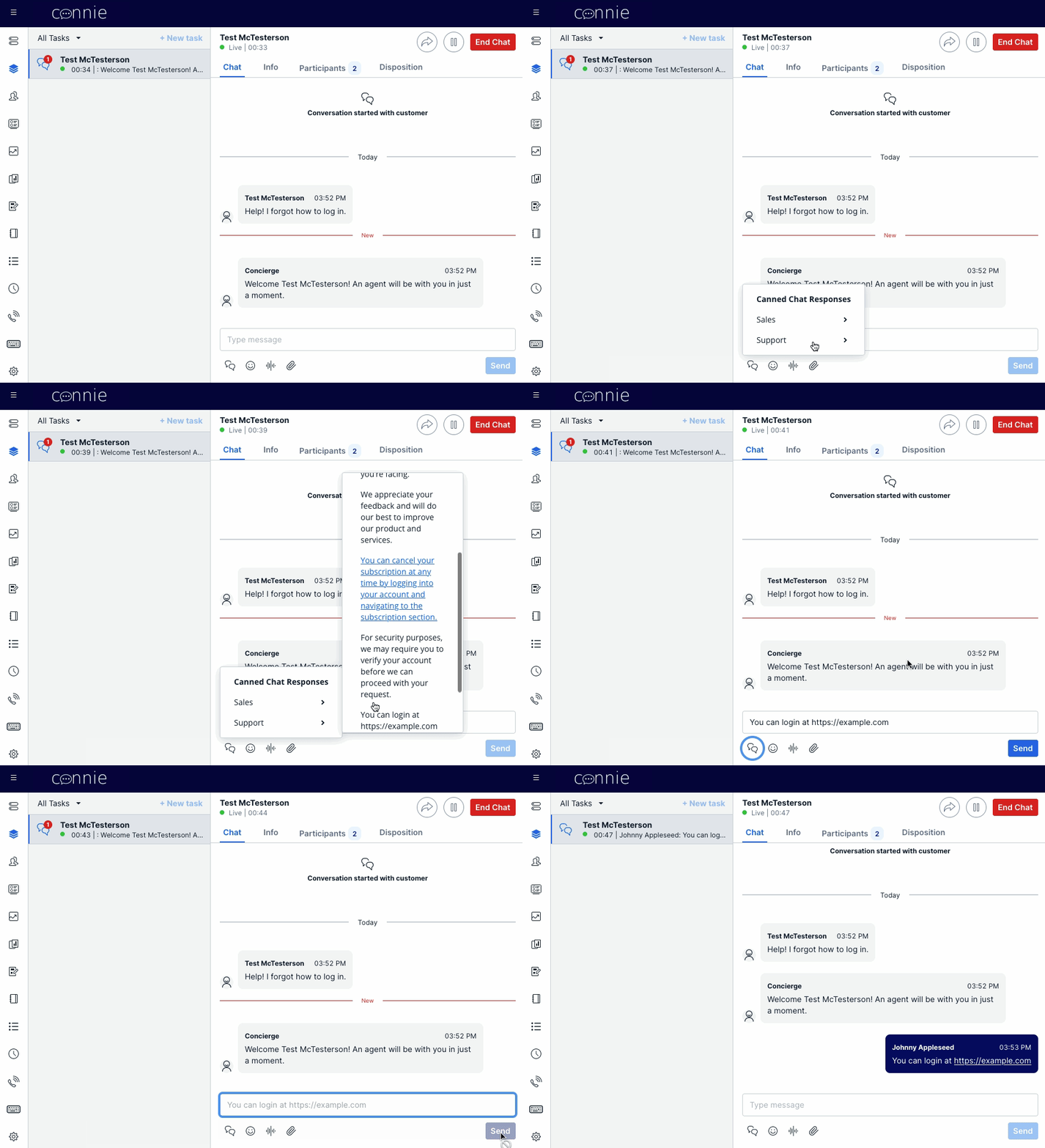
When the canned responses are set up as a dropdown, you'll see a small icon or menu beneath the message composer. Click it to open the list, click a response, and it drops into the message field for you to review and send.
When to Insert vs Send
| You want to... | Use |
|---|---|
| Reply with the exact wording, no changes | Send (Option A only) |
| Use the response as a starting point, then edit | Insert |
| Add a personal touch — "Hi Maria, …" before the canned text | Insert |
| You're not sure if it fits the situation | Insert — then read it before sending |
When in doubt, Insert. Reading it once before you send catches the rare case where the canned wording doesn't quite match what the customer asked.
Personalization — auto-filled details
Some responses your library includes may be pre-wired to auto-fill details like the customer's name or your own name — so you don't have to type them in every time. You'll see the real details once you Insert the response, not the template placeholder.
If a response inserts but shows blank where a name should be, let your supervisor know — the underlying template might need a small fix.
Which channels support canned responses
| Channel | Supported? | Notes |
|---|---|---|
| Webchat / SMS / WhatsApp / FB Messenger | ✅ Yes — Insert and Send both work | Native — fastest path |
| ⚠️ Insert only | Even if you click Send, it acts like Insert. You'll still need to confirm the email with Flex's normal Send button (so you can review Subject / To / CC). | |
| Voice calls | ❌ No | Voice tasks have no message composer to drop text into. |
Troubleshooting
The list is empty / I don't see any canned responses. Your account may not have a library set up yet. Ask your supervisor — this is a quick admin configuration, not a problem on your end.
A response inserts but the customer's name is blank. The template behind that response has a placeholder issue. Report it to your supervisor with the response category + name; they'll route the fix.
I can see the responses but Insert / Send doesn't do anything. Try refreshing the page (Ctrl+R or Cmd+R). If the issue persists, ping your supervisor or check the troubleshooting page.
Quick Reference
| Action | How to Do It |
|---|---|
| See your library | Look right (CRM Panel) or beneath the message field (dropdown), depending on setup |
| Drop a response in | Click Insert (or pick from the dropdown) — review before sending |
| Send without editing | Click Send (CRM Panel only; not available in dropdown mode) |
| Use on email | Insert drops the text — then use Flex's normal email Send button |
Next: Recording Notes on your interactions, or back to Inbound Messages.
Need help? Check the FAQ or visit Get Support.