Sending a Caller to Voicemail
Sometimes a call comes in and nobody on your team can take it right now. You're mid-conversation with someone else, you're the only person on shift, or the caller simply needs to leave a message rather than wait.
Send to Voicemail lets you offer that caller the voicemail greeting straight away, instead of leaving them on hold listening to music.
This is not a personal "not me" button. It doesn't hand the call to a colleague — it takes the caller out of the queue. After this, no one on your team can pick them up. Their only remaining way to reach you is the message they leave.
If you just don't want to take this particular call, the red X is the button you want — that passes the same caller along to the next available person.
When to use it
| Use it when | Use something else when |
|---|---|
| Nobody is free and the caller is better served leaving a message | A teammate is available — use the red X instead, which passes the call along |
| You're the only one on shift and already on a call | You just don't want this call — the red X is the right button |
| The caller would rather leave details than hold | You want to keep the caller waiting for a person — do nothing; it keeps ringing |
The difference in one line: the red X passes the call to the next agent. Send to Voicemail takes the caller out of the queue and gives them the greeting.
How to do it
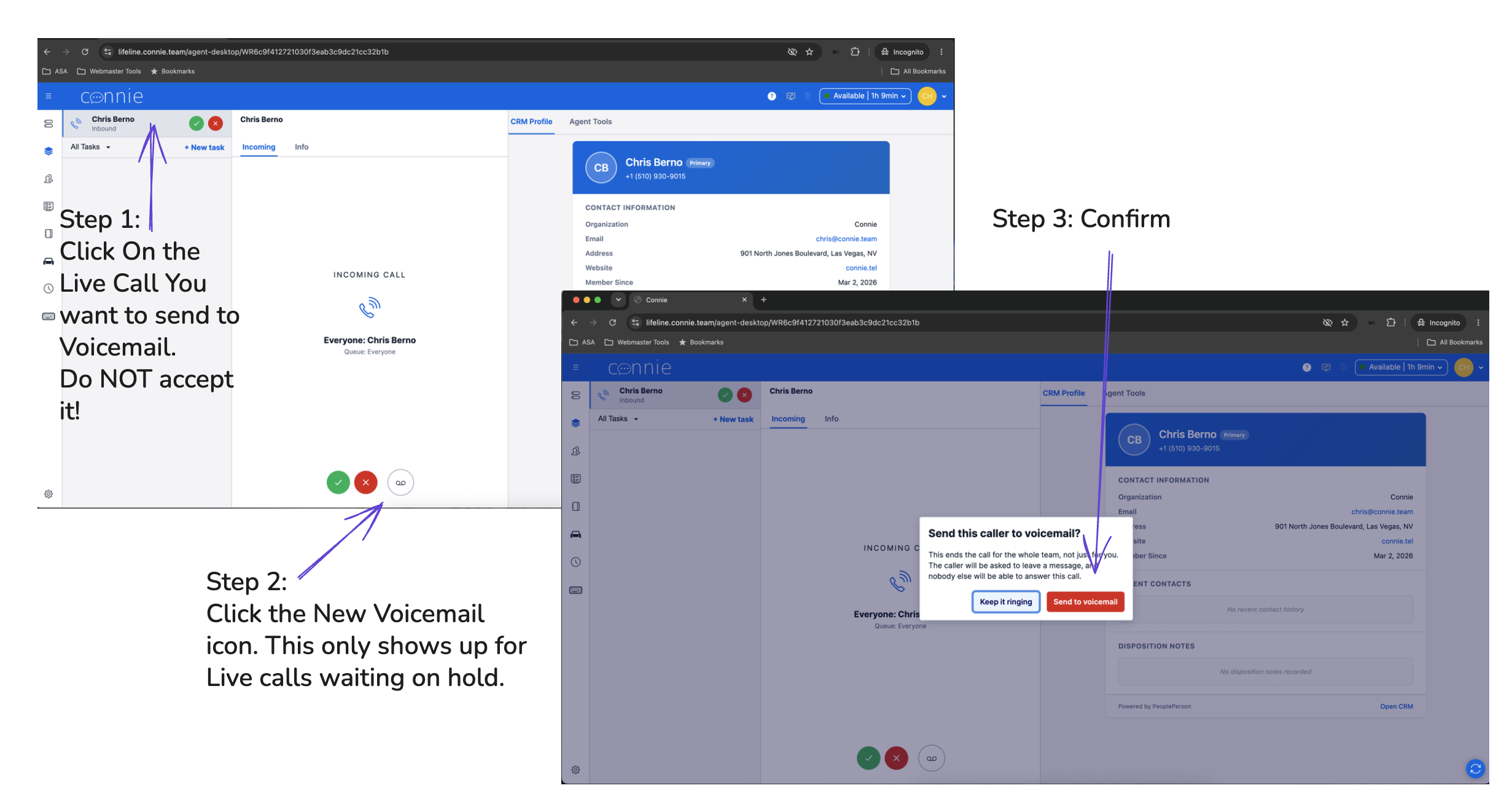
Click the image to open it full size.
1. Click the ringing call — do not accept it.
Open the call in the middle panel by clicking it in your task list. Don't press the green checkmark — accepting the call answers it, and this button is only for a call that's still ringing.
2. Click the voicemail icon.
It sits to the right of the green accept and red decline buttons. It only appears for a live call that's still waiting — never on a call you've already answered.
3. Confirm.
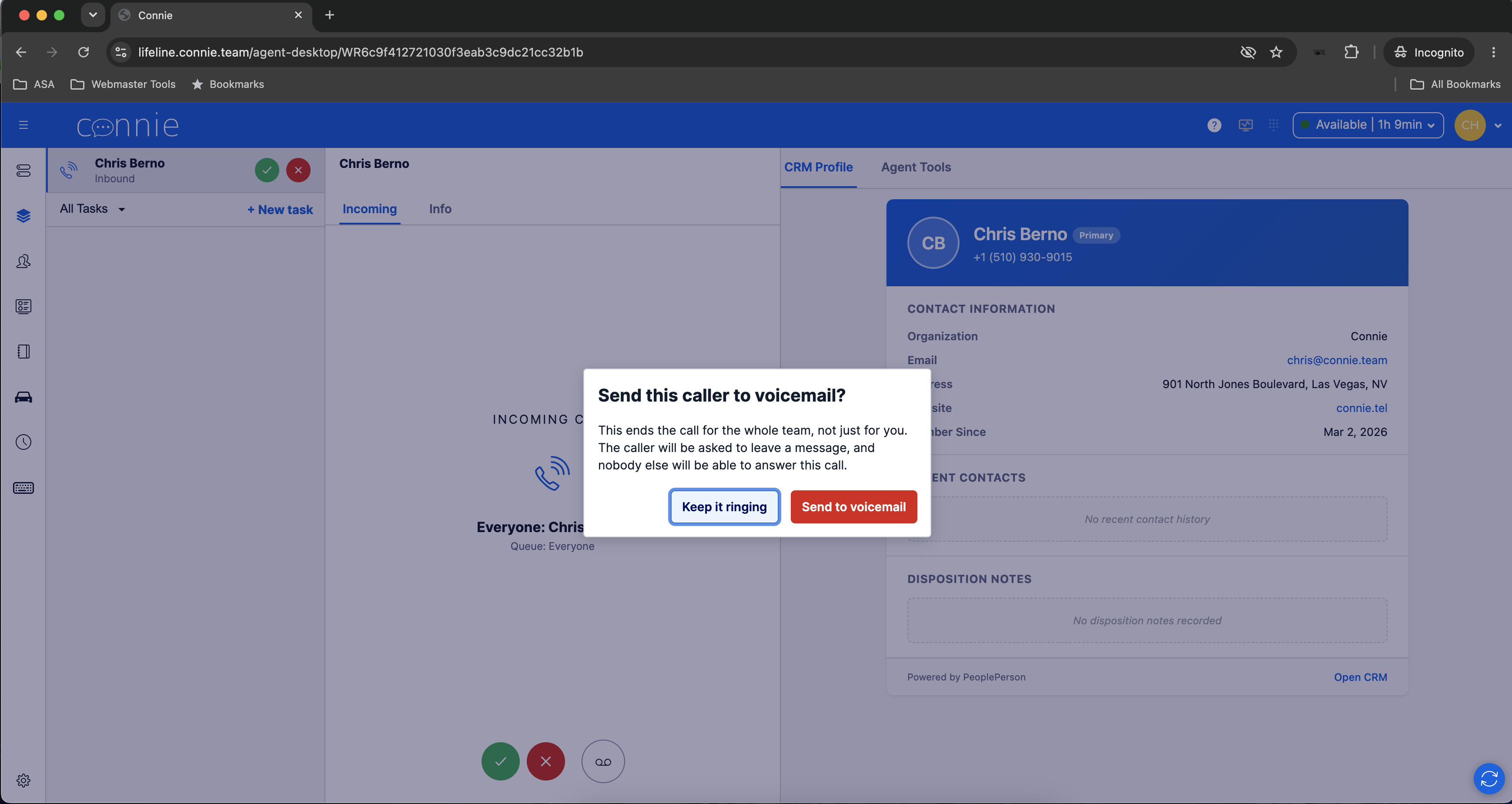
ThreadConnect spells out what's about to happen before doing it. Nothing has happened yet at this point — Keep it ringing backs out with no harm done. Choose Send to voicemail and the caller hears your organization's greeting.
What happens next
The caller's message comes back to your team as a voicemail task in the queue, the same as any voicemail. It carries the caller's number and, if ThreadConnect recognises them, their name and profile — so whoever picks it up already knows who called.
A voicemail task stays in your queue for 96 hours, not one hour. A message left late on Friday is still waiting on Monday morning. See How Long a Task Stays in Your Queue.
Your reporting shows this correctly too. A caller you sent to voicemail is not counted as an abandoned call — it's recorded as a deliberate choice you made, and the voicemail is linked back to the original call.
If something doesn't look right
| What you see | What it means |
|---|---|
| The button isn't there | It only appears on a ringing voice call. Once you've accepted a call, or for emails, faxes and chats, it isn't offered. If a ringing call is missing it entirely, your organization may not have it switched on yet — ask your administrator. |
| "That call is no longer waiting" | A teammate accepted it, or the caller hung up, in the moment between your click and your confirm. Nothing went wrong and nothing was lost. |
| The button is greyed out briefly | It's working. It goes back to normal once the caller has been moved. |
Two places it's meant to be missing
Nothing is broken in either of these. They're the two most common reasons people go looking for the button and don't find it.
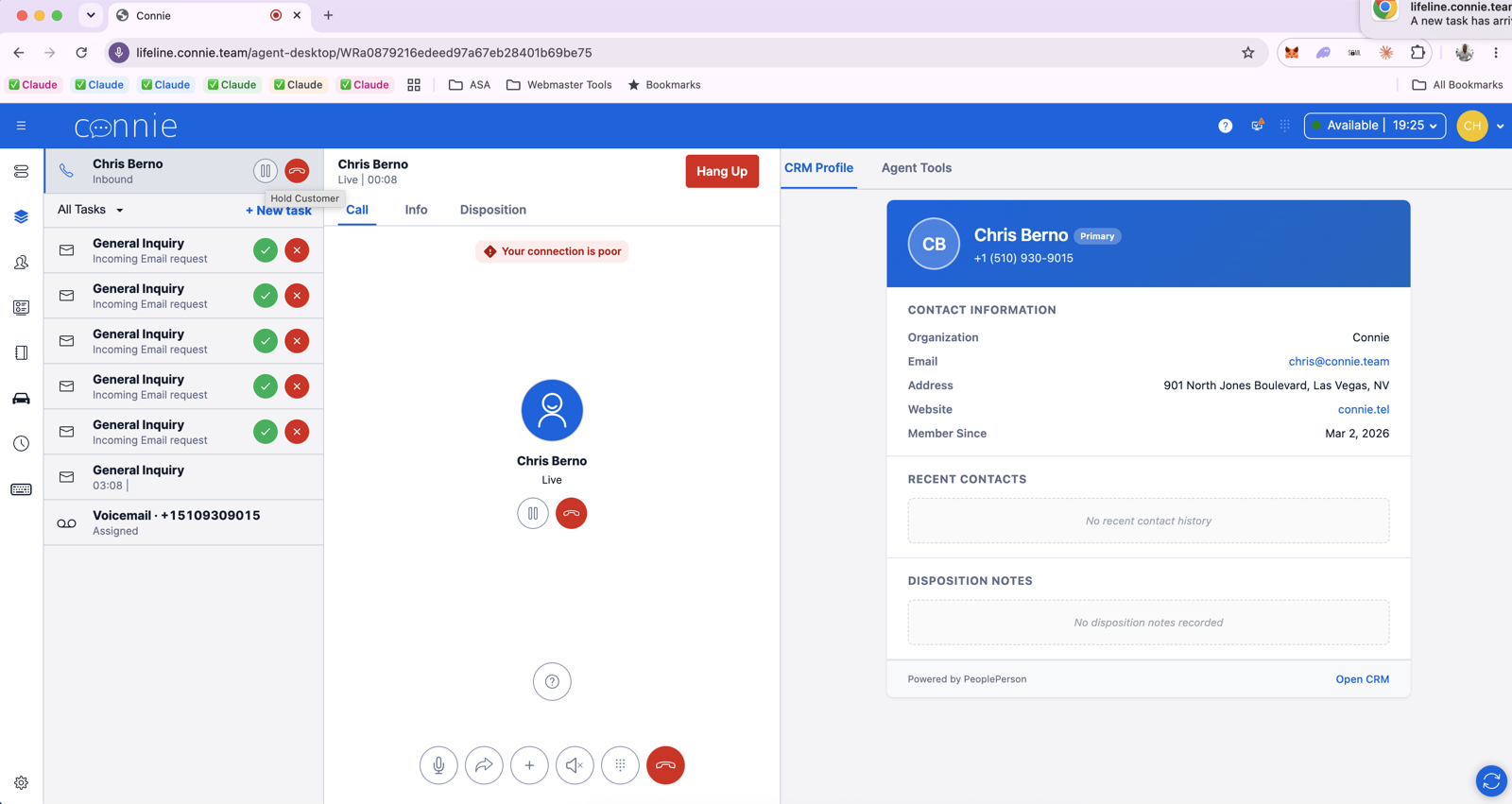
On a call you've already answered. Once you press the green checkmark you're in the conversation — there's no longer a waiting caller to send anywhere. If you need to get this caller to voicemail now, the honest move is to tell them and take a message yourself.
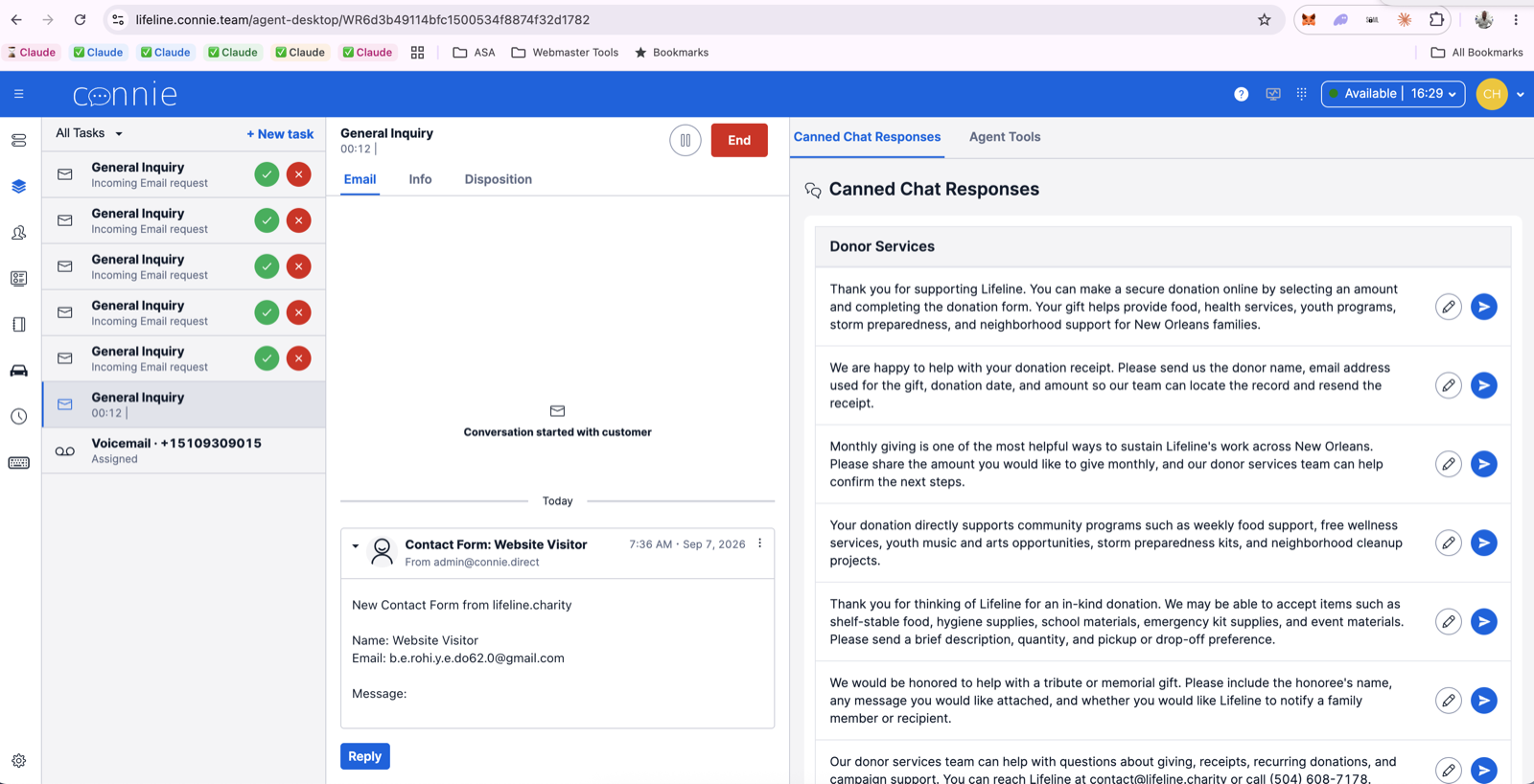
On an email, fax or chat. There's nobody on the line to redirect. These wait in your queue for four days — see How Long a Task Stays in Your Queue.
Questions people ask
Can I undo it? No. Once the caller has been sent to voicemail, they're out of the queue. That's why ThreadConnect asks you to confirm first.
Will my teammates know it was me? Yes — the action is recorded against your name. This isn't a way to quietly clear a call, and it isn't meant to be.
Does the caller know they were sent there by a person? No. They simply hear the voicemail greeting, the same as if they'd chosen it themselves or called outside your hours.
Can I still see the message afterwards? Yes. It comes back to the team queue as a voicemail task like any other — you or a colleague can pick it up, listen, read the transcript, and follow up.
Related: Accepting and Handling Inbound Calls · Parking a Task · How Long a Task Stays in Your Queue