Shared Contacts & External Referrals
Your shared contact directory is the list every member of your staff sees inside ThreadConnect when they need to call a partner, transfer a caller, or refer a case out of your organization. You own it. Nobody else can edit it — agents see it, administrators and supervisors maintain it.
This page covers what belongs in it, the one field that decides whether a partner can receive referrals at all, and how to load a whole list from a spreadsheet instead of typing contacts one at a time.
A contact can only receive a Hand off or a referral if it has an email address.
A referral leaves ThreadConnect as an email. A contact with no email address on file is still perfectly useful — your staff can call it and transfer callers to it — but it will not appear when an agent tries to refer a case out. It is invisible to that part of the product.
If a partner organization should be able to receive referrals and nobody has put an email address on their contact, your staff cannot refer to them and will not be told why. The partner simply isn't on the list.
🔀 Three things your staff can do — know which is which
Every task in ThreadConnect has one Send button — the ThreadConnect Task Sender. It offers up to three choices. Only two of them need an email address.
| Transfer | Hand off | Refer out | |
|---|---|---|---|
| What it is | Moves the task to a coworker or department in ThreadConnect | Emails it to a coworker at your organization who doesn't use ThreadConnect | Emails it to someone at another organization |
| Which contacts appear | ThreadConnect coworkers and departments | Contacts whose email is at your own organization | Contacts with any other email address |
| Needs an email on the contact? | No | Yes | Yes — no email, no referral |
| Works on | Every task | Voicemail, fax, web form, email | Voicemail, fax, web form, email |
| What travels with it | The whole task | The recording + transcript, the fax/form document, or the full email with attachments | The same |
| Does ThreadConnect keep track? | Yes — it stays in ThreadConnect | No — it leaves ThreadConnect and closes | No — it leaves ThreadConnect and closes |
Replies to a Hand off or Refer out email do not come back into ThreadConnect. The email is sent from a ThreadConnect address (ThreadConnect Referrals), not from your staff member's inbox, so a partner who needs to answer should call or email your organization directly. Phone calls, web chats and texts can only be transferred, because someone is waiting on the line.
The ThreadConnect team switches the Task Sender on for each organization. If your staff don't see a Send button at the top of their tasks, contact the ThreadConnect Care Team. Until it is switched on, staff use the older Route this task button on voicemail, fax and web form tasks. Its Refer out to a partner list shows Shared Contacts with an email address only; an agent's private My Contacts never appear there.
Once the email is sent, the item is in someone else's inbox and out of ThreadConnect's reach. The task closes in ThreadConnect, and nobody here will be reminded about it. Treat the email address on a contact with the same care you would treat handing someone a paper file — a typo sends a client's information to a stranger.
Your staff's version of this is documented at ThreadConnect Task Sender — worth reading once so you know exactly what they see.
📇 What a contact holds
Each contact in the shared directory has eight fields. Only two are required.
| Field | Required? | What it's for |
|---|---|---|
| Name | Yes | The person, or the desk. Jackie Emigh or UMC Patient Services |
| Phone | Yes | The number your staff will dial or transfer to. Also how ThreadConnect tells one contact from another |
| Organization | No | The agency or company — University Medical Center |
| Department | No | The team within it — Case Management, Discharge Planning |
| No — but see the warning above | The referral address. Present means referable; absent means not | |
| Notes | No | Anything useful to the agent. "Call before 3pm", "Send records requests by email" |
| Allow cold transfer | No | Can staff transfer a caller straight through? Blank means yes |
| Allow warm transfer | No | Can staff introduce the caller first, then hand over? Blank means yes |
Jackie Emigh in Name and University Medical Center in Organization — not Jackie Emigh (UMC). Staff search and read these lists under pressure, and the columns exist so they don't have to decode a name.
📬 Choosing which email address
Where a partner offers one, use a shared inbox — referrals@, intake@, admissions@ — rather than an individual staff member's address.
A referral sent to one person's address goes unread when that person is on leave, changes roles, or leaves the organization, and nothing in ThreadConnect tells you it went unread. A shared inbox is watched by whoever is on duty. It is the single easiest thing you can do to make referrals actually land.
Use an individual's address only when a partner genuinely has no shared inbox — and put their name in Notes so a successor can be found later.
📤 Loading a list from a spreadsheet
Typing partners in one at a time is fine for three contacts and miserable for forty. ThreadConnect can import a whole list from a CSV file.
The spreadsheet import is switched on per organization. If you don't see it next to Add contact in your contacts directory, it isn't enabled on your account yet — ask your ThreadConnect representative or the ThreadConnect Care Team.
Where to find it
In ThreadConnect, open Contacts from the left sidebar, then the Shared Contacts tab. If the import is switched on for your organization, you'll see Import from CSV next to Add contact.
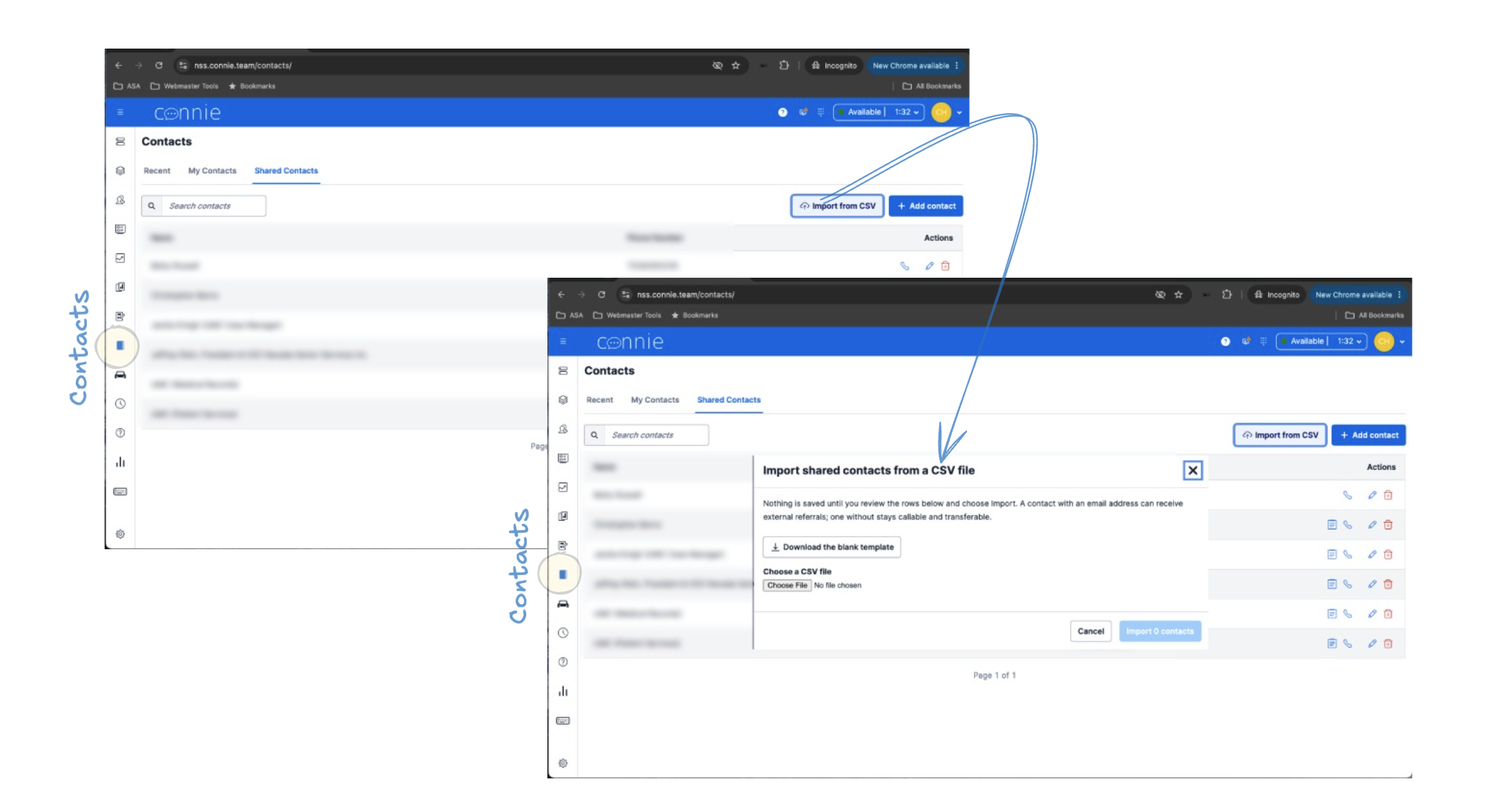
Contacts → Shared Contacts → Import from CSV. Click the image to enlarge.
The file
Start from the ThreadConnect contacts template — it's in Admin Tools inside ThreadConnect, along with step-by-step instructions for exporting what you already have out of Outlook, Outlook on the web, Google Contacts, or a spreadsheet you already keep. The template opens in Excel, Numbers, or Google Sheets.
It has eight columns, one per field above:
name · phone · organization · department · email · notes · allow_cold_transfer · allow_warm_transfer
Don't rename, reorder, or delete the column headings. Everything under them is yours.
If you already have a contact list exported from somewhere else, send it as it is — ThreadConnect recognizes the standard Outlook and Google Contacts column headings, so you don't have to reshape a file by hand. (Hand-renaming columns in Excel is the most common way an import goes wrong.)
How an import runs
- Open your contacts directory in ThreadConnect and choose Import (next to Add contact).
- Pick your file.
- Review the preview. ThreadConnect shows you every row and what it will do with it — create a new contact, update one that already exists, or reject it with the reason.
- Confirm. Only the clean rows are saved.
- You get a count back: created · updated · rejected.
Nothing is written until you confirm the preview. You can walk away at that point and nothing has changed.
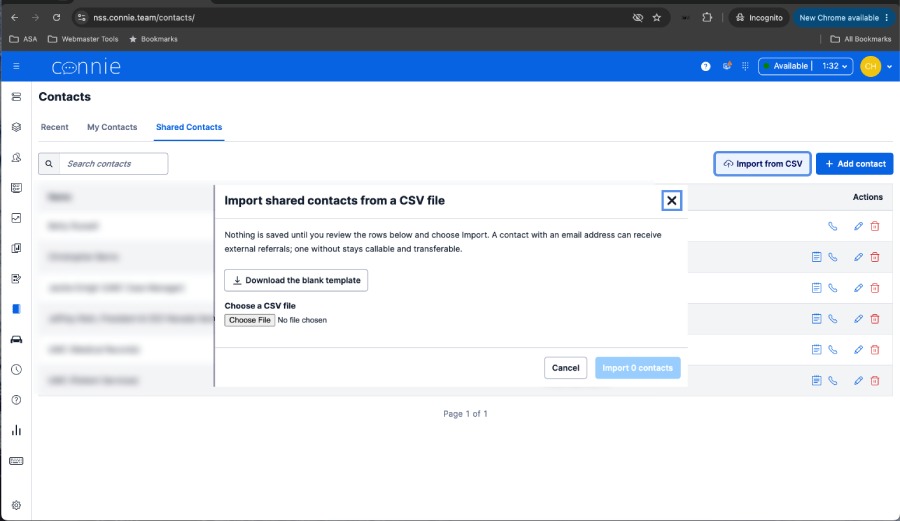
The import window. The blank template is downloadable from here, and the Import button stays disabled until you've chosen a file and reviewed what it contains.
The five rules worth knowing before you start
1. A blank cell never erases anything. If you send a corrected file later and leave a cell empty, whatever is already in ThreadConnect stays. That means you can upload a short file with only the rows you changed. To actually remove an email address from a contact, delete it in ThreadConnect or ask your ThreadConnect representative — clearing the cell in your spreadsheet will not do it. This is deliberate: a blank cell is far more often an omission than an instruction.
2. Every row needs its own phone number. The phone number is how ThreadConnect tells one contact from another. Three departments at the same agency is three rows with the same Organization and different Department — but each row must have a different number (a direct line, or the main line plus an extension).
If two rows share the exact same number, both rows are rejected, and the preview names both of them. Not just the second one — both. Rejecting only the duplicate would let one row silently win and you'd never learn which. You disambiguate, and the data is better for it.
3. Blank means yes on both transfer columns.
Leave allow_cold_transfer and allow_warm_transfer empty and the contact allows both — the same as a contact you add by hand. Type y/yes/true/1 for yes, n/no/false/0 for no. Anything else rejects the row rather than being guessed at.
4. A problem row is rejected and named, never guessed at. A phone number ThreadConnect can't read, an email with a typo in it, a missing name, two rows sharing a number — each is shown to you with its row number and the reason. The rest of the file is not held up by it.
An import that loudly rejects three rows beats one that quietly creates forty unusable ones. A contact that looks fine and silently cannot receive referrals is exactly the failure this is designed to prevent.
5. Re-uploading updates; it never duplicates. Upload the same file twice and matching contacts are updated, not duplicated. That makes your spreadsheet the working copy: change it, upload it again. It also means an import never deletes — a partial file will not wipe contacts that aren't in it. Deleting a contact stays a deliberate act in the ThreadConnect interface.
Don't type N/A or none in an empty cell. An empty cell is what ThreadConnect expects, and N/A becomes text your staff will read in the directory.
Handling the file itself
A filled-in template is real contact details for real people — names, direct lines, work addresses — sitting in a file on somebody's laptop and, usually, in an email thread. It isn't client health information, but it isn't nothing either. Keep it where you'd keep a staff roster: don't forward it beyond the people building the list, and delete stray copies once the import is done.
👀 What your staff will see
Your contacts directory, once it's populated. Everyone on your team can see and use these; only admins and supervisors can change them.
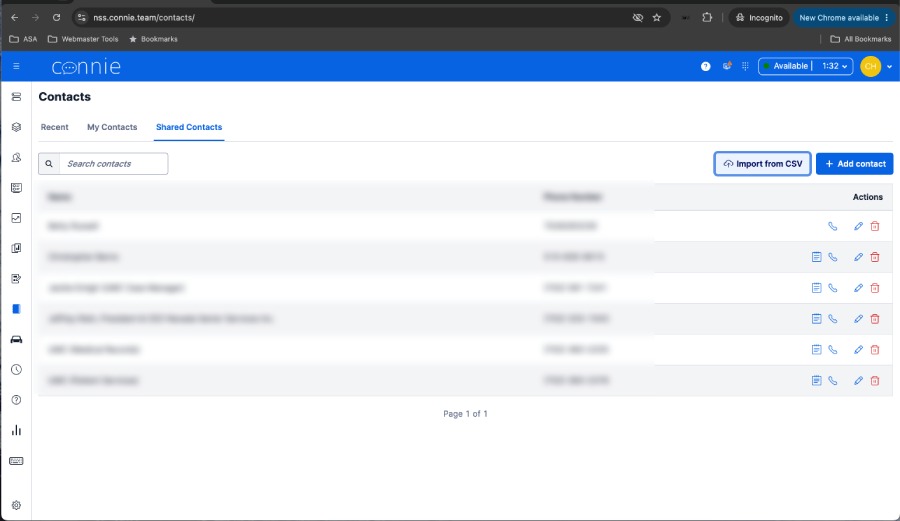
Once a contact is in the shared directory:
- It appears in the contacts directory for every agent, with the organization and department beside the name.
- It can be called and transferred to, subject to the two transfer settings.
- If it has an email address, it appears when an agent chooses Hand off (email at your own organization) or Refer out (any other email) on a voicemail, fax, web form or email task.
- If it doesn't, it simply isn't in that list. The agent sees the partners that do have one.
The person receives an email with everything attached: the voicemail recording and transcript, the fax or form document, or the full email with its attachments.
➡️ The staff-side procedure, in their words: ThreadConnect Task Sender
⚠️ Common questions
"An agent says a partner isn't in the Refer-out list." That contact has no email address on file. Add one — in ThreadConnect directly, or by uploading a file with that row filled in. The partner appears immediately.
"I uploaded a file of email addresses and it said everything updated, but nothing changed."
Check the preview for a warning about an unrecognized column heading. If the email heading didn't match, ThreadConnect treated every email cell as blank — and a blank cell preserves what was already there. Fix the heading and upload again.
"Can I delete a batch of contacts by leaving them out of the file?" No, and on purpose. An import only adds and updates. Delete contacts individually in the contacts directory so a half-finished spreadsheet can never wipe your directory.
"Did the partner actually receive the referral?" ThreadConnect sends it immediately, but there's no delivery receipt in the product, and a reply to that email does not come back into ThreadConnect. If a partner says it didn't arrive, ask them to check spam first, then contact the ThreadConnect Care Team.
"Who is allowed to do this?" Administrators and supervisors maintain the shared directory. Agents can see it and use it, but not change it.
🎯 Next steps
- ThreadConnect Task Sender — what your staff see and do
- Conversation Transfer — configuring in-network transfers for live conversations
- Manage your team — how your own people appear across ThreadConnect
- Administrator Getting Started — the full admin setup path
Need help? Visit Get Support or reach out to your ThreadConnect representative.